 AfterInspect
Dictate a finding
Dictation lets you say what you see instead of typing it with gloved hands. The recording becomes a finding on the item you were on, and the app turns it into text afterwards. The text is a starting point: you read it and fix it, because nothing here is guaranteed to be heard or understood correctly.
Before you start
- Dictation is on the item, not on the inspection. To record before you know which item something belongs to, use walk-and-talk capture instead.
- Your browser asks for microphone access the first time. If it is refused, or the recording cannot start for any other reason, the app shows "Could not access the microphone." and nothing is recorded.
- Turning the recording into text happens on our servers, so it needs a connection. Recording does not.
- Transcription is set up for US English. There is no language setting for it.
Dictate on an item
Open an inspection and tap the item's name, for example "Roof covering". The item opens and shows the condition buttons, Notes, Limitations, Dictate finding, and the finding form.
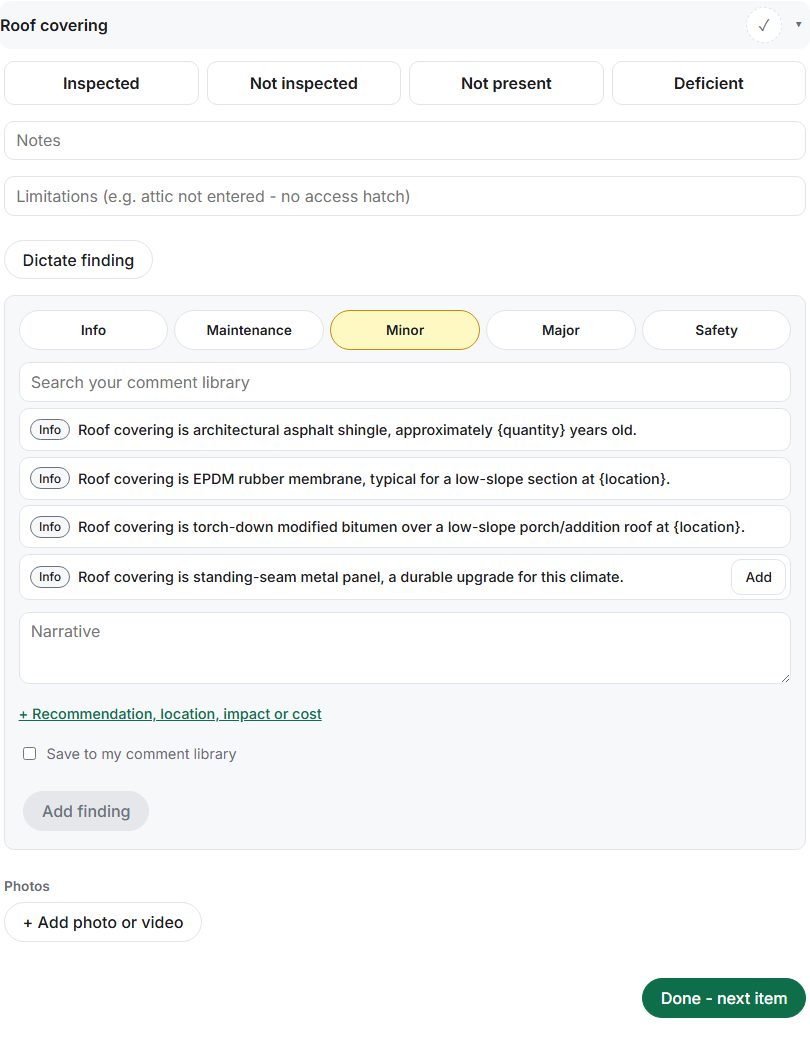
Tap Dictate finding and speak. The button changes to Stop recording while it records.
Tap Stop recording. A finding appears on the item straight away with the placeholder text "(awaiting dictation)" and a severity of Minor. The recording is stored on your device first.
Keep going. When there is a connection the recording uploads and the app shows "Transcribing..." under the finding. When the text arrives, it replaces "(awaiting dictation)" and the raw transcript is shown under the label "Raw transcript". If you have already edited that finding's text yourself before the transcript arrives, the app leaves your text alone.
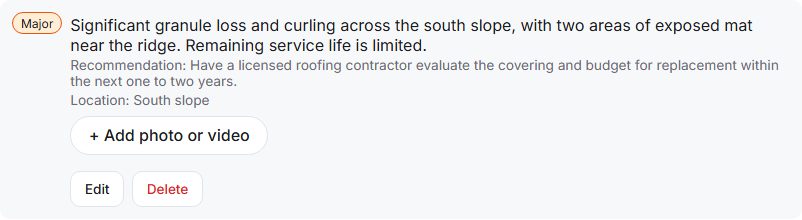
Tap Edit under the finding, correct the wording, set the severity, and tap Save finding. A dictated finding starts at Minor, so choose the right severity yourself. See severity and condition.


The structured draft
Where the AI draft feature is switched on for the service, a transcribed finding also shows Generate structured draft. It reads the transcript and proposes a severity, an observation, why it matters, a recommendation and a location. The draft appears under the heading "Draft - review before applying" and does nothing until you tap Apply to finding, after which the button reads "Applied". Applying replaces the finding's severity, narrative, recommendation and location with the draft's. If a draft is wrong, edit the finding afterwards, or do not apply it.
If something goes wrong
- "Could not access the microphone." Allow microphone access for the site in your browser or phone settings, then tap Dictate finding again.
- "Transcription failed - type the finding manually." The recording stays attached to the finding. Tap Edit and type the finding.
- "(awaiting dictation)" does not change. The recording has not uploaded or been transcribed yet. This is normal while offline. It carries on when you are back online; see working offline.
- "Could not generate a structured draft." Try again, or write the finding yourself.