 AfterInspect
The comment library
The comment library is a list of reusable findings: a severity, a narrative and an optional recommendation. When you write up an item, the finding form offers matching entries under the severity buttons. Tap one and the wording is in your finding, so you type a defect once and reuse it on every inspection after that.
It is a searchable list of ready-made sentences. You find them by typing and by the item's name, as described below, rather than by picking a system, then a component, then a defect from a dropdown tree.
What is already in it
A new account starts with several hundred built-in entries, grouped under Roof, Exterior, Structure, Electrical, Plumbing, HVAC and Interior. They are starting points: edit or replace them to match how you write. Accounts for the US market also get some US-specific entries.
The entries are copied into your account when you sign up, so they are yours to edit or delete. Entries added to the app later do not appear in an account that already exists. The built-in entries are in English. Anything you add can be in any language.
Some built-in entries contain a placeholder in curly brackets, such as {location}, {quantity} or {material}. It marks a detail that changes from house to house: "Roof covering is architectural asphalt shingle, approximately {quantity} years old." The app does not fill these in for you. You replace the bracketed word with the real detail yourself.
Reuse an entry in a finding
Open an inspection and tap an item's name to open it.
In the finding form, look under the Info, Maintenance, Minor, Major and Safety buttons. Until you type anything, the app shows up to four entries whose wording or category contains the item's name. Opening Roof covering finds entries that mention "Roof covering".
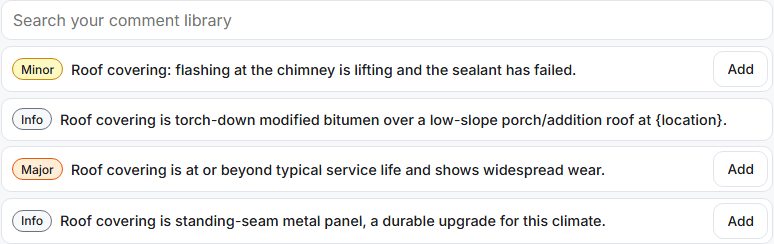
To look for something else, type in Search your comment library. Once you have typed two or more characters, the list switches to your search and shows up to eight matches. Matches are on the narrative or the category.
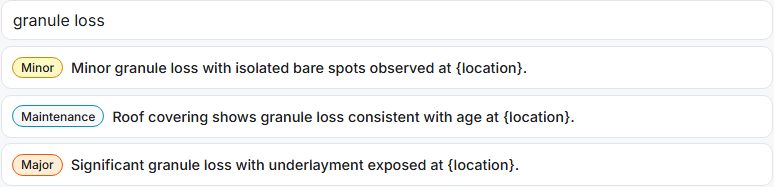
Choose how to use an entry:
- Tap Add to put it straight into the inspection as a finding, with its severity and recommendation. Use this when the wording needs no changes.
- Tap the wording itself to copy it into the form instead. The severity, Narrative and recommendation fill in and you can edit all of them before you save.
Entries that contain a
{placeholder}have no Add button, because adding one as it stands would put the bracketed word into your client's report. They can only be copied into the form.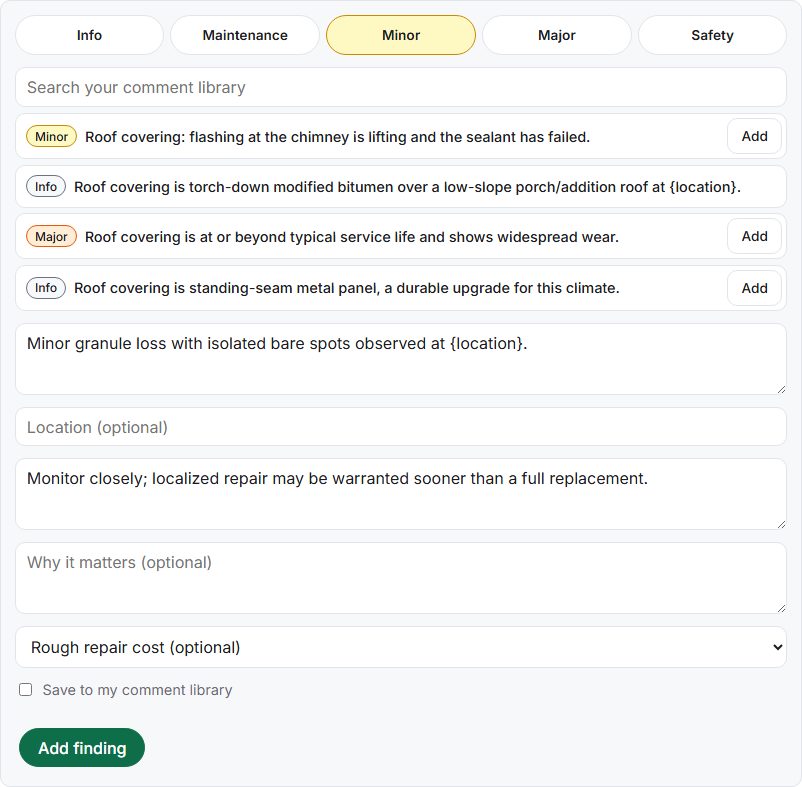
Replace every bracketed word with the real detail, then tap Add finding. Nothing checks for a leftover bracket, so read the narrative once before you add it.


Favourite entries are listed first, ahead of the rest, in the suggestions and in search results.
Save wording you write as a new entry
When you type a finding of your own, you can keep it for next time.
In the finding form, tick Save to my comment library.
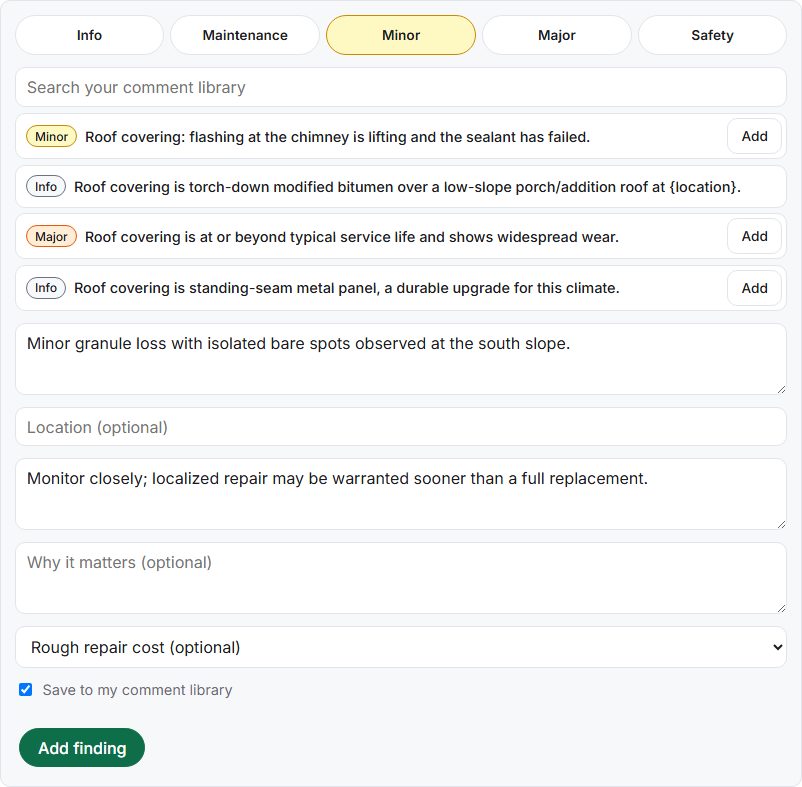
Tap Add finding. The finding is added as usual and the entry is saved in the background.

The entry is filed under the item's name, for example "Roof covering", with the severity, narrative and recommendation you entered. Location, "Why it matters" and the repair cost are not saved with it. The box is on the add form only, not when you edit an existing finding. The library save needs a connection. If you are offline, the finding is still recorded and the entry is simply not saved, with no message, so write it again from the Comment library page when you are back online.
Manage the library
Open Comment library from the bar at the top of the app. The page says how many entries you have.
Tap a category name, such as Roof, to open it. Categories are listed alphabetically and start closed, each with its entry count.
Type in the search box to search every category at once. It matches the narrative, the category and the tags, and it opens every category that has a match.
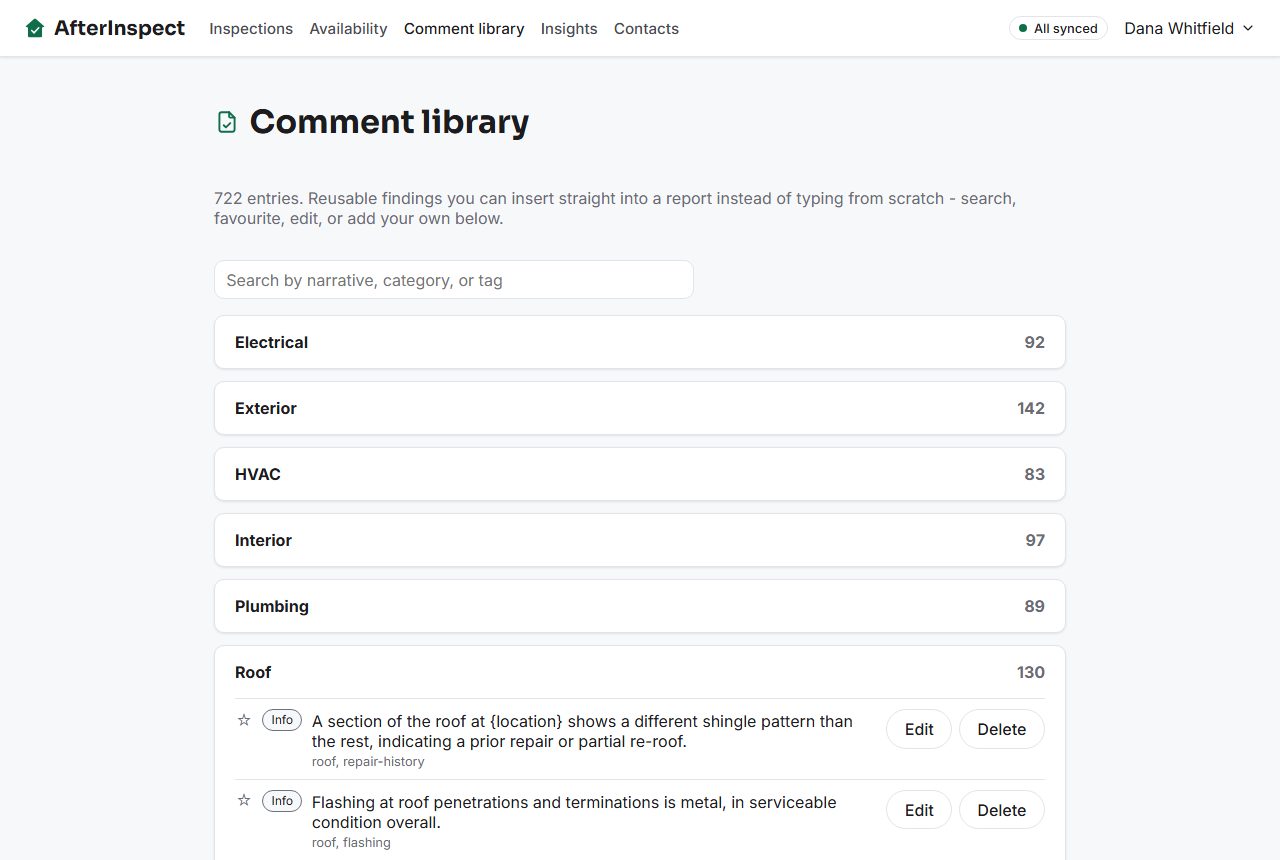
Use the star to favourite or unfavourite an entry. Tap Edit to change it, or Delete to remove it. Delete takes effect at once, with no confirmation and no undo.
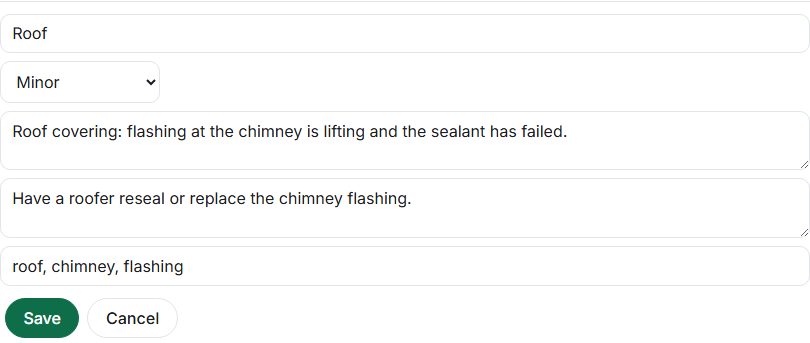
To add an entry, tap + Add entry to Roof (or the name of whichever category is open), or + Add entry in a new category for a category of your own. Fill in Category, the severity, Narrative, an optional recommendation and Tags, comma separated, then tap Save. Tags make an entry easier to find in search on this page.


Everyone on the account shares one library. A change made by one person is seen by the rest of the team. The wording you use ends up in the report: see Complete an inspection and generate the report. You can also speak a finding instead of typing it: see Dictate a finding.
If something goes wrong
- No suggestions appear under an item. Suggestions come from your account over the internet, and nothing is kept for offline use. Offline, or if the request fails, the list is quietly empty and you can type the finding as normal. A suggestion also appears only if some entry mentions the item's name, so type your own search.
- A bracket such as
{location}reached a report. Open the finding, tap Edit, correct the text and save. See Severity, condition and marking items inspected for the finding form. - Your saved entry is not in the library. You were probably offline when you added the finding. Add the entry again on the Comment library page.
- You deleted an entry by mistake. There is no undo. Add it again with + Add entry.