 AfterInspect
Complete an inspection and generate the report
A report is made from a completed inspection. You mark the inspection complete, tap Generate report, and AfterInspect builds a real PDF on the server that you can download, publish and send.
Before you start
- Let the app finish syncing. The report is built from what the server has, not from what is only on your phone, so wait until the chip at the top right says All synced (see Working offline and fixing sync issues).
- Generating needs a connection. Completing the inspection does not: it is saved on the device and sent when you are back online.
Preview before you complete
While an inspection is still in progress, two buttons sit at the top of its page. Preview report opens the client's web report in a new tab, built from your current findings, with a banner saying "Draft preview: your own view of the client report. Nothing has been shared or sent." Preview PDF opens a draft PDF; every page of it carries the footer "DRAFT PREVIEW - not for delivery". Neither one creates a report or a link.

Both previews push your pending changes first. If some are still waiting to sync, a note says how many are not in the preview.
Complete the inspection
Open the inspection and tap Complete inspection.
Read the line that appears. It says how many findings are recorded, and warns in bold when there are problems:
- "N item(s) not reviewed yet." An item counts as reviewed once it has a condition or a finding.
- "N item(s) marked Deficient with no finding describing them." The report's summary only lists findings, so these items would be missing from it.
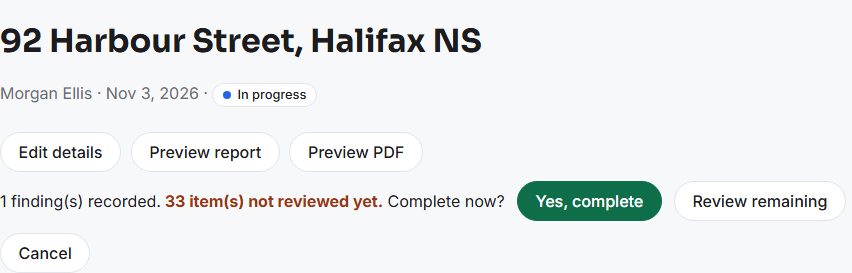
Tap Review remaining to jump to the next unreviewed item, or Cancel to go back. Or tap Yes, complete to go ahead. The warnings do not stop you.

After you confirm, the status chip changes to Completed and the inspection is read-only: you can no longer change findings, ratings or photos. If you need to change something, tap Reopen for editing, make the change and complete it again. See Report versions for what that means for a report you already made.

Generate the report
On the completed inspection, scroll to the Report box and tap Generate report.

The box shows "Version 1 -" and a status: Queued, then Building, with "usually under a minute" beside it. It updates by itself.
When the status is Ready, the box shows Download PDF, the share controls and Regenerate report.
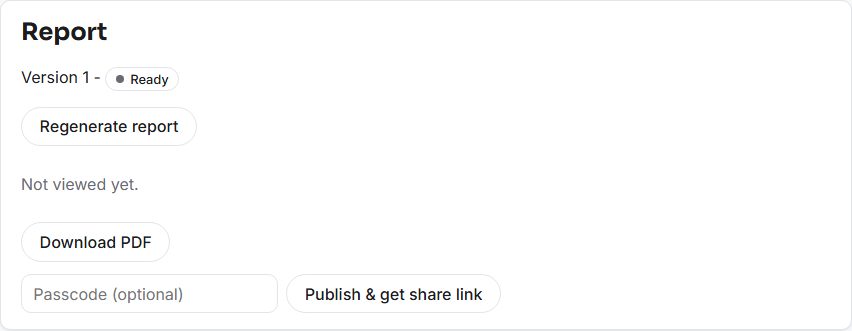
Tap Download PDF to save it. The file is named
inspection-report-v1.pdf.


If your account has the report review step turned on, an extra Review section appears in this box and Publish & get share link and Email to client stay disabled until an owner or admin approves the report. Owners and admins are never held up. The setting lives under Account, Team (see Inviting your team).
What is in the PDF
Pages run in this order: the cover (address, who it is prepared for, inspector, inspection date), then your own notice pages if you have set any, an About this report page, the property details, a table of contents, and a Summary of findings. The summary shows a count for each severity, then the Safety and Major findings with their first photo, then every other finding in one line. After that come the sections of the inspection in order, each with its items, findings, notes, limitations and the photos attached to them, with a short list of items found in good order. Last is a Limitations and standards of practice page. A home maintenance guide is added before it if you ticked that in your branding settings. The footer carries the address and "page of pages" on every page.

Only photos go into the PDF. A video does not appear in it at all; it plays on the web report that clients open from the share link. See Share the link and email the client. To add your own pages and choose optional parts, see Report pages. Your logo, colour and licence numbers come from Branding your report.
A re-inspection produces a short addendum instead of a full report. See Re-inspections.
If something goes wrong
- A red box says some photos or videos "are not in storage yet". They will be blank in the report. If they are still uploading from your phone, open the app there and let it finish syncing, then check again. Otherwise retake or remove them.
- "Could not start the report render. Try again." The request did not reach the server. Check your connection and tap Generate report again.
- The status says Failed. The box shows the error, or "Render failed." Tap Regenerate report.
- "The report is taking longer than usual. Refresh this page in a minute to check on it." The page stops checking after three minutes. Refresh; if the report finished it will show as Ready.
- "Could not download the report." Try Download PDF again.