 AfterInspect
How AfterInspect works
Three steps, start to finish - no syncing spreadsheets, no separate report software, no signal required until you want it.
See it in action: filling in an inspection, start to finish.
Step 1
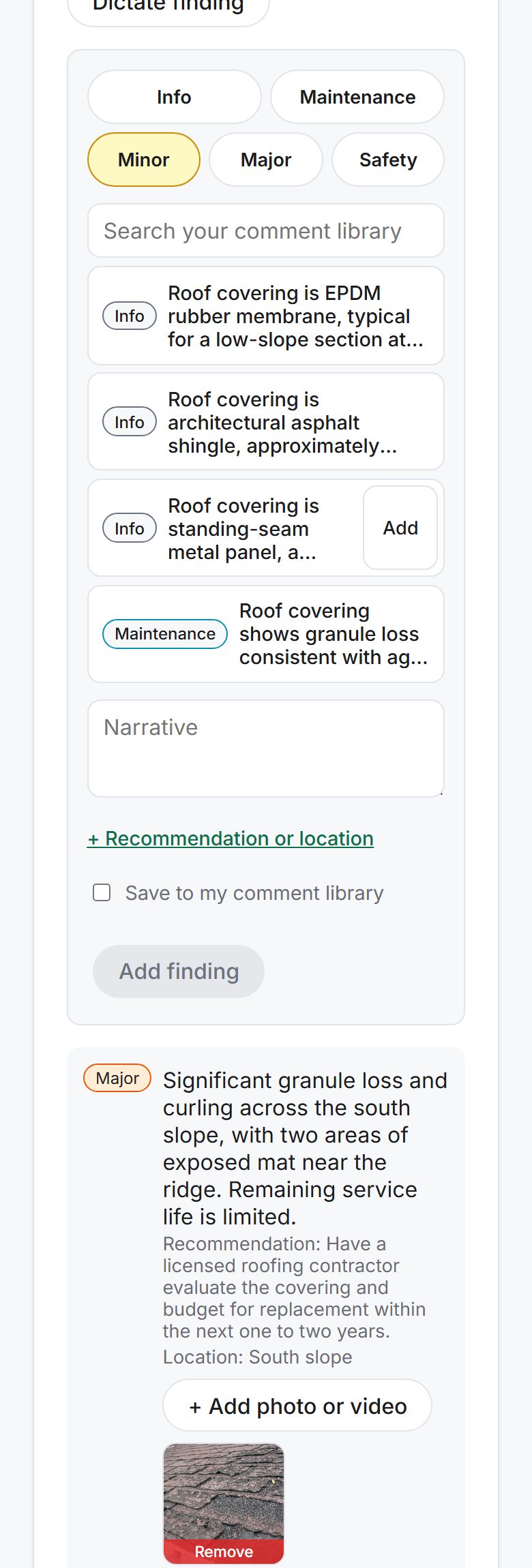
Walk the property, capture as you go
Every section of the template is on screen as you move through the property. Tap an item, set its condition with one tap - or tick it off as inspected without even opening it - and record a finding: pick a severity, then type it or reuse a line from your own comment library with a single tap, with a photo or two attached directly to it. A progress bar shows how many items you've reviewed, and Next unreviewed jumps to the one you haven't touched yet. The walk-and-talk capture bar at the top does the same for anything you don't want to stop and sort yet: dictate a note or snap a photo unsorted, and triage it onto the right item afterward.
Everything is written to your device first. Photos, dictation and findings are captured and stored locally - the basement with no signal doesn't slow you down, and nothing is lost if you lose connectivity mid-inspection. It syncs automatically the moment you're back online.
Step 2
Complete the inspection, generate the report
Once every finding is recorded, mark the inspection complete - you'll be warned if any items were never reviewed - and it becomes read-only from that point, so nothing changes underneath a report that's already gone out. One click on Generate report renders a real PDF: cover page with your logo and colours, a summary of Safety and Major findings up front, full section-by-section detail behind it, and every photo resized and placed inline.
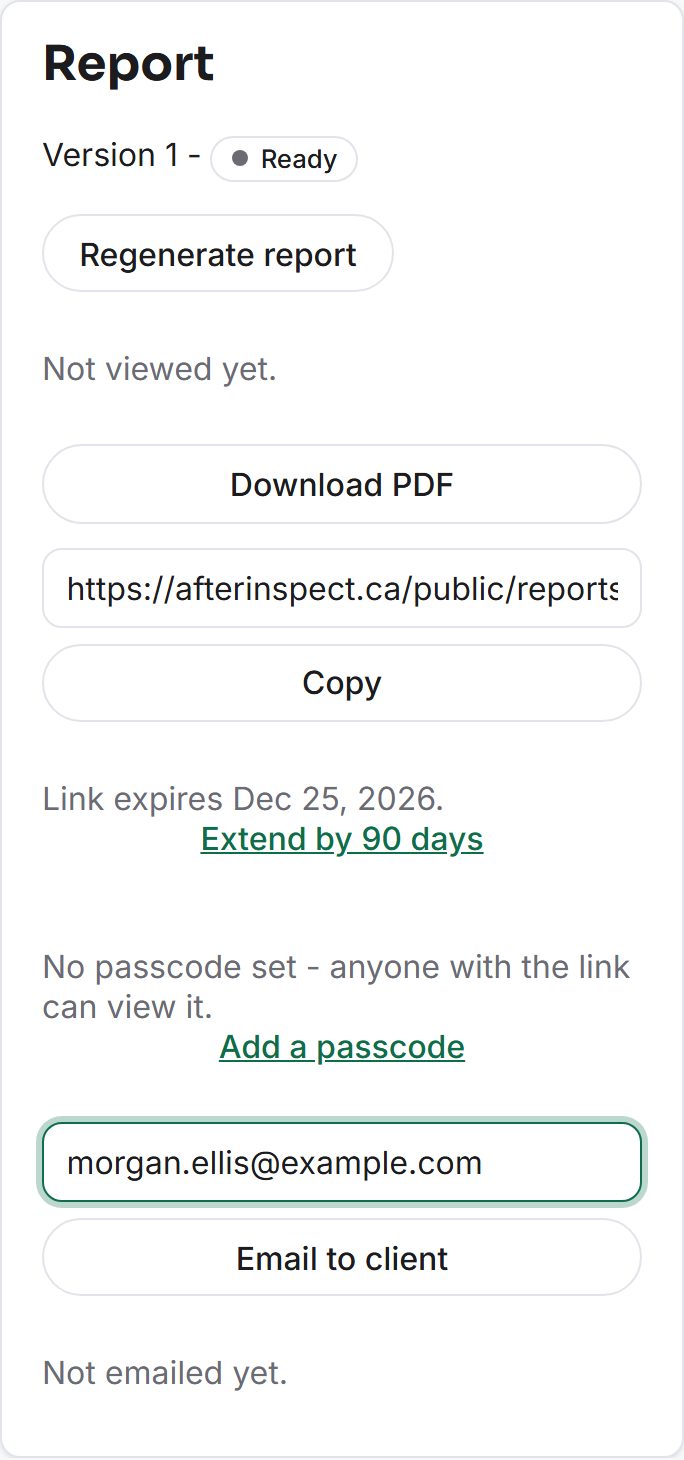
Reports are versioned, never overwritten - regenerate after a correction and the old version stays around. Download the PDF directly, or keep going to publish it.
Step 3
Publish a link, or email it directly
Publish & get share link gives you a URL your client can open on any phone or computer, no login required - handy for the video clips a PDF can't play, which show up in the shared report as their poster frame in the PDF but play in full at the link. Or skip the link and use Email to client to send that link straight from AfterInspect, with an optional passcode if you want the extra privacy.
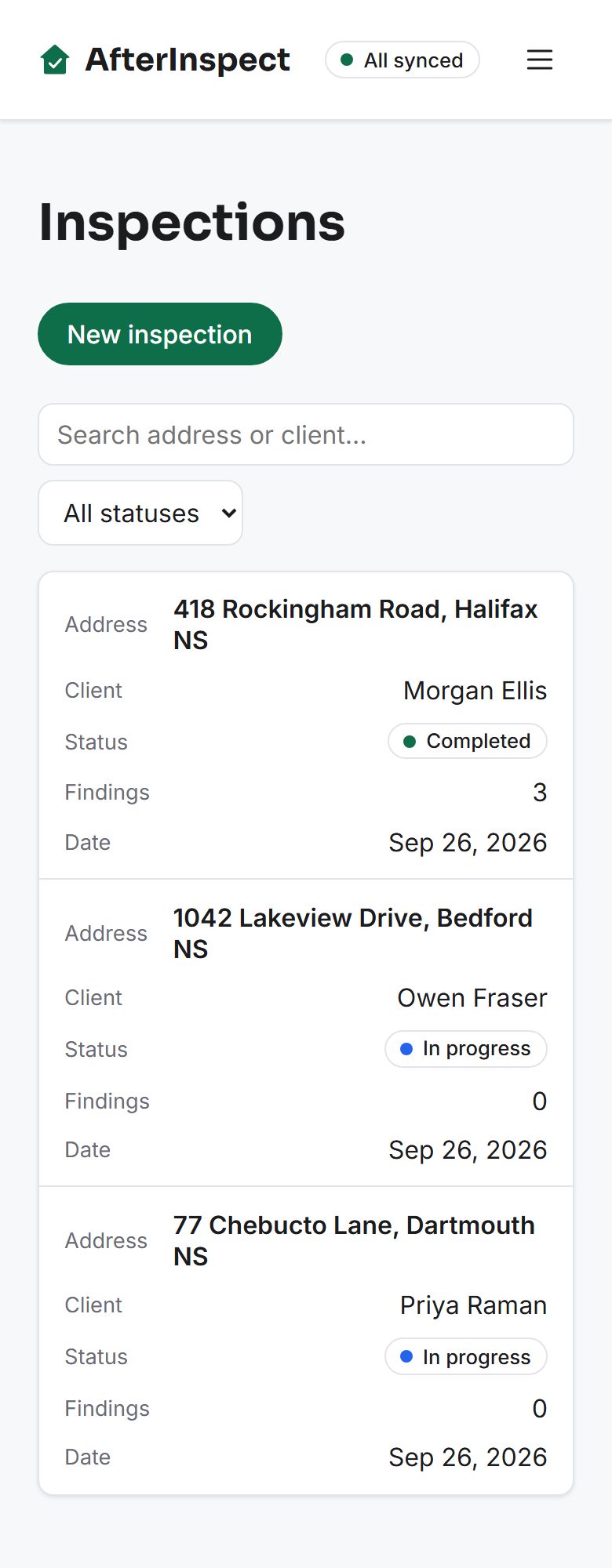
Every inspection you've run stays on your dashboard - address, client, status, findings count and inspection date - so picking up where you left off, or pulling up an old report, is one click away.
Give it a try
14 days, full features, no card required until you're ready to pick a plan.
Start your free trial