 AfterInspect
Report versions
Every time you generate a report, AfterInspect makes a new version. It never overwrites the earlier one. This article explains what you see, what stays behind, and what to do after you change a completed inspection.
Fix something after the report is made
On the completed inspection, tap Reopen for editing. The status changes back to In progress.
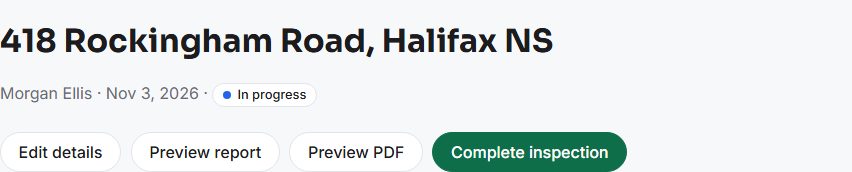
Make your change, then tap Complete inspection and Yes, complete again.
Scroll to the Report box. It still shows the old version, with a note: "This report was generated before your most recent changes to the inspection - regenerate to include them."
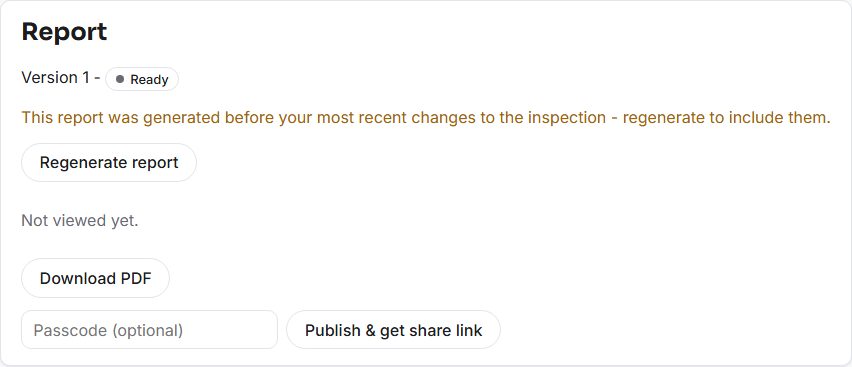
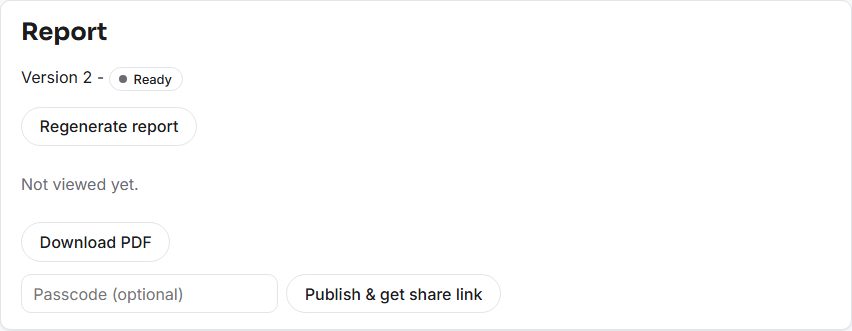
Tap Regenerate report. The box shows "Version 2 -", then Ready when it is done.


The warning compares the time of your last change to the inspection with the time the report was made. Completing the inspection again counts as a change, so you will see it after any reopen, even if you edited nothing.
What is kept
- Each version is its own report. Version 1 and Version 2 are separate PDFs, and each has its own share link, passcode, expiry, view count and last-emailed record.
- The Report box only shows the newest version. There is no list of older versions in the app and no button to download one. If you want a copy of version 1, tap Download PDF before you regenerate: the file is named
inspection-report-v1.pdf, and version 2 downloads asinspection-report-v2.pdf. - A failed render also uses up a version number. If a build fails, Regenerate report makes the next number.
- A new version starts unpublished. It has no link yet, so use Publish & get share link again and email it again if the client needs it. See Share the link and email the client. If your account has the review step, the new version needs its own approval too.
What happens to the link you already sent
Nothing is switched off. The link for version 1 keeps working until it expires, and nothing in the app lets you turn it off early. What the client sees there is a mix:
- The Download PDF button on that page gives the PDF as it was when version 1 was made.
- The web report itself is built from the inspection as it is right now, not from a saved copy. A client who opens the old link after you have corrected a finding sees the corrected finding on the page, while the PDF they download from the same page still shows the old wording.
So if you correct something that matters, publish and email the new version rather than relying on the old link, so the client's PDF and web report agree.
If something goes wrong
- The warning does not go away after regenerating. Wait for the status to say Ready. The note clears once the new version is built.
- You cannot find an older PDF. It is not offered in the app. Download each version you want to keep before regenerating.
- Regenerate is greyed out. A report is still being built. Wait for it to finish, or refresh the page if it has been more than a few minutes.
For the basics of making a report, see Complete an inspection and generate the report.