 AfterInspect
Share the link and email the client
Once a report is Ready you publish it to get a share link, then email that link to your client from AfterInspect. The client opens the report in their browser with no account and no login.
Before you start
You need a report with the status Ready. See Complete an inspection and generate the report. If your account has the review step turned on, an owner or admin must approve the report before Publish & get share link and Email to client work.
Publish and get the link
In the Report box, decide whether to protect the report. To add a passcode, type it into Passcode (optional). Leave it empty for a link that anyone can open.
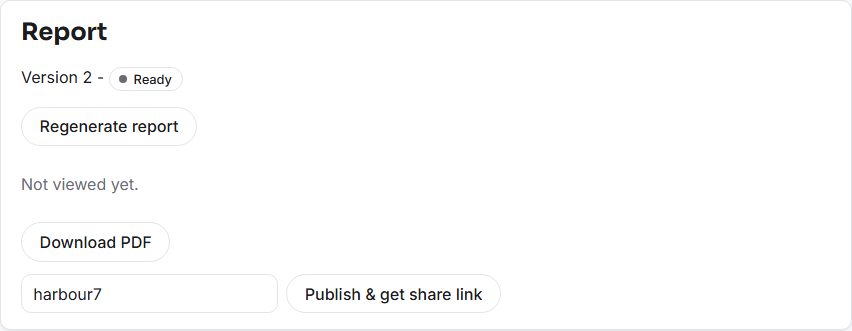
Tap Publish & get share link.
The box now shows the Share link, a Copy button, the expiry and the passcode state.
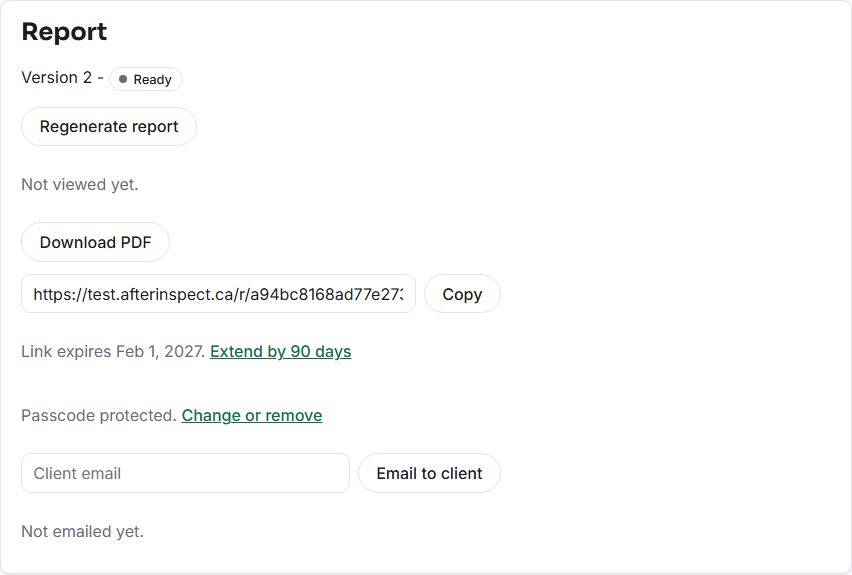


Things to know about the link:
- It needs no login. Anyone who has the link can open the report, so treat it like the report itself. Tap Copy to put it on your clipboard if you want to send it yourself.
- It expires after 90 days. The box says "Link expires" and the date. Tap Extend by 90 days to add 90 days from today. Once it has expired the box says "Link expired" and the button reads Renew for 90 days. The same link works again; its address does not change.
- A passcode is kept hashed, and is not in the email. "No passcode set - anyone with the link can view it." shows when there is none. Tap Add a passcode, or Change or remove to set a new one. Leaving the field blank and saving removes it. Give your client the passcode yourself, by text or a call.
- Publishing again keeps the same link. It does not make a new one; it only extends the expiry or changes the passcode.
Email it to the client
Under the link, check the email box. It is filled in from the client's email on the inspection (see Contacts); type one if it is empty or wrong.
If the inspection has a buyer's agent with an email, a checkbox reads "Also send the report link to the buyer's agent (their address)". Tick or untick it for this send. Its starting state is set under Account, Client emails (see Client emails and automations).
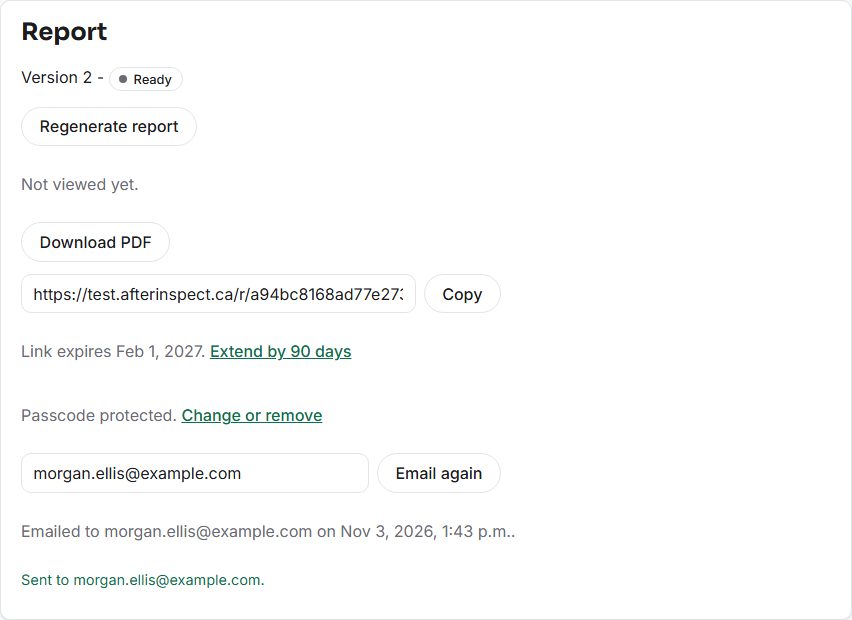
Tap Email to client. A green line says "Sent to" with the address, and under it "Emailed to (address) on (date)." The button now reads Email again.

What the client receives:
- The email comes from your company name followed by "(via AfterInspect)", and replies go to your own email address.
- The subject is "Inspection report -" and the property address.
- The body is headed "Your inspection report is ready", says the report for that address is ready to view, and has a View your report button for the link. When the PDF can be read from storage it is attached to the email as
inspection-report-v1.pdf(the number is the version), and the text says so, and that the link opens it in the browser too, "with any video clips playable in full". If the PDF could not be attached, the email goes out without it and without that sentence. - The agent, if you ticked the box, gets a shorter email headed "An inspection report for your client" with a View the report button and no attachment. If the agent's copy fails, the client's email has still gone and no error is shown.
The app keeps only the latest send. Email again replaces the "Emailed to" line, so it does not give you a history. Because sending goes to a real person, check the address before you tap it.
What the client sees
If you set a passcode, they first see a page titled "This report is password protected" with the line "Enter the passcode (your company) gave you to view it." A wrong one gives "That passcode wasn't right. Try again."

Then they get the report page: your header and branding, a Download PDF button, a row of section links, and a summary of how many findings there are of each severity. The Safety and Major findings are listed first as links. Tapping a severity count hides or shows that severity. Each finding shows its narrative, recommendation and photos, and photos open larger. A video plays on the page itself. Any notice pages you wrote are in an Important information section; see Report pages. A client can tick findings to build a repair request; see Repair requests.

The PDF is the same version you downloaded. The web page is built from the inspection as it is now; see Report versions.
See when it was opened
The Report box says Not viewed yet. until the client opens it. You can also set an unopened-report reminder: see Client emails and automations. After that it reads "Viewed 1 time - first opened (date and time)." and the count goes up with each visit. If the report has a passcode, a visit counts once it has been unlocked. If you have notifications turned on for the app on your phone, the first open also sends you "Your report was just viewed".

If something goes wrong
- "Could not publish the report." Try again. If it keeps failing, check your connection.
- "Could not send the email." Nothing was recorded as sent. Check the address, then look in the client's inbox only if you are unsure, before you tap again, because a retry can email them twice.
- "This account requires a review before reports are sent. Ask an owner or admin to approve it first." The review step is on and this report has not been approved.
- The client says the link does not work. The page reads "This report link isn't available. It may have expired, or the link may not be correct." Tap Renew for 90 days or check the link was copied whole.
- The client sees "Your report is ready" and a pay button instead of the report. The account is set to hold the report until the inspection is paid for, which is a setting where client payments are available. They can read it once the payment goes through.
- The email does not arrive. Ask the client to check spam. The link is also in the Report box, so you can send it yourself.