 AfterInspect
Inviting your team
On the Team plan you can add other inspectors to your account so they work in the same company, with the same templates and comment library, under their own sign-in. This article covers inviting them, the three roles, and what happens when you change or remove someone.
Who can use Team
The Team page is part of the Team plan only. On any other plan, including the free trial, there is no Team entry in the Account menu. If you open the page by its address anyway, it says "Team management is available on the Team plan. Upgrade to invite teammates." with an Upgrade to Team button that takes you to Billing. See Plans, the trial and billing, and the Pricing page for what each plan includes.

The people and addresses in these pictures are examples.
The three roles
- Owner. The person who created the account. There is exactly one. The owner manages billing, can delete the whole account and can change anyone's role. The owner cannot be removed and their role cannot be changed, and ownership cannot be handed to someone else from the app.
- Admin. Can invite people and remove inspectors, approve reports when review is on, and use the account settings that are limited to managers: Templates, Report pages, Automations, Insights, Contacts, and editing the Agreement, Client emails, Payments and Availability. An admin cannot change roles, remove another admin, or manage billing.
- Inspector. Runs inspections and reports. An inspector does not get the manager pages above and cannot invite people.
Invite someone
Only the owner and admins see the invite form.
Open the menu at the top right, choose Account, then Team under Business. The page shows the team list, the Report review box and Invite a teammate.
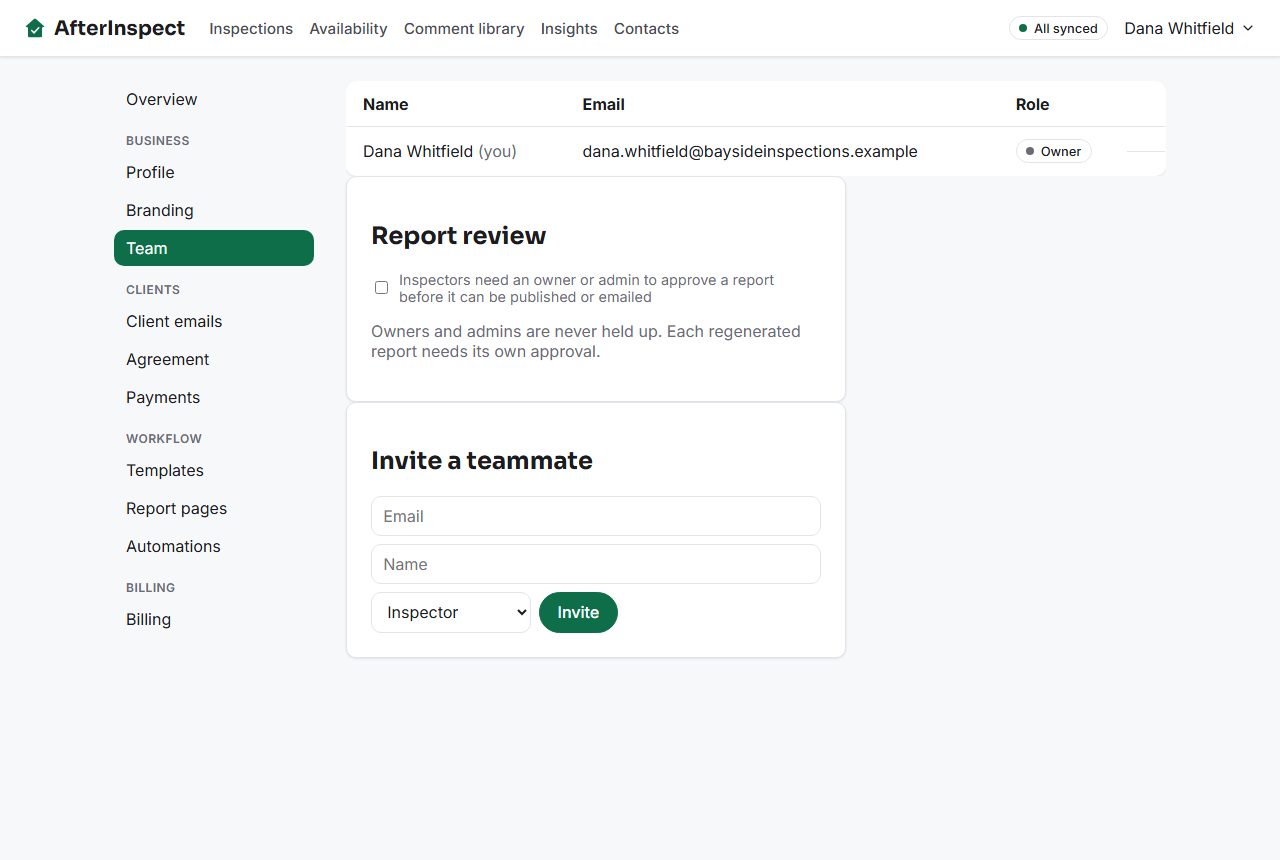
Under Invite a teammate, type their Email and Name, and choose Inspector or Admin from the list. Inspector is selected to start.
Tap Invite.


Their account is created straight away. It does not need a confirmation email, because you vouched for the address. What happens next depends on whether the server can send email:
- Email is sent. The page says "Emailed (their address) a link to set their own password. If it doesn't arrive, they can sign in directly with the temporary password (a random password)." The teammate gets an email titled "You've been invited to AfterInspect". It says who added them and as what, and has a Set your password button. The link works once.
- Email is not sent. This happens where AfterInspect has no email sending set up for the account's site. The page says "Invited (their address) - temporary password: (a random password)" and asks you to share it with them directly. A live account with sending configured shows the first message instead.
Either way the page shows a temporary password that works for signing in. Treat it like any password: pass it on privately and ask them to set their own from Profile; see Your profile. It is only shown on this page, so copy it before you leave. The teammate starts with the same language you use, and can change it later; see Changing language.
Seats
The Team plan is paid per inspector. When you invite someone and every paid seat is already used, AfterInspect first tries to raise the number of seats on your subscription by one. If that works, the invite goes ahead. If it cannot, for instance because there is no active subscription yet or the card was declined, the invite is refused with this message, where the number is your current seat count:
"Your Team plan is paid for (number) seat(s), and all of them are in use. Add a seat from Account > Billing, then invite again."
Billing has no button that adds a seat. Open Billing and tap Manage billing, which opens Stripe's billing page for your subscription, and change the quantity there if it offers it. If it does not, use Contact. Then invite again. Prices and what a seat costs are on the Pricing page and on the Billing page, not here.
If the address already belongs to an account anywhere in AfterInspect, the invite is refused: "An account with this email already exists." Other failures show "Could not send that invite. Check the email and try again."
The team list
Above the invite form, the list shows each person's Name, Email and Role. You are marked "(you)".

Change a role
Only the owner can. Use the menu in the Role column to switch someone between Inspector and Admin. The change takes effect when their app next refreshes its sign-in, which is within about fifteen minutes, and they may be asked to sign in again. If it fails: "Could not change (name)'s role. Try again."
Remove someone
The owner can remove anyone but themselves. An admin can remove inspectors only. The owner never appears with a Remove button.
- Tap Remove in their row. The row asks "Remove (name)?".
- Tap Yes, remove, or Cancel.

Their inspections stay in your account; the inspector column for them goes blank. Their sign-in is cut off at the next refresh. On the Team plan, AfterInspect also tries to lower the number of paid seats by one. If something fails: "Could not remove (name). Try again."
Report review
On the Team page, owners and admins also see a Report review box with one checkbox: "Inspectors need an owner or admin to approve a report before it can be published or emailed". When it is on, an inspector's report has a Review section where they tap Request review, and an owner or admin taps Approve or Send back with note. Owners and admins are never held up, and each regenerated report needs its own approval. The setting applies to the whole account; see Complete an inspection and generate the report and Share the link and email the client.
If something goes wrong
- No Team entry in the Account menu. Your account is not on the Team plan. That includes the free trial and the Solo plan.
- No invite form. Only the owner and admins have it.
- "Could not load your team. Try refreshing the page." Reload the page.
- The teammate never got the email. Check their spam folder, then give them the temporary password shown when you invited them. If you have lost it, they can tap Forgot password? on the sign-in page and set a new one.