 AfterInspect
Sign in and confirm your email
You create an account with an email and a password. Depending on how the service sends mail, you may first have to confirm your email address by clicking a link. This article covers sign-up, signing in, and fixing a confirmation email that has not arrived.
Create your account
Open the sign-up page from the Start free trial button on the AfterInspect website, or go to the Log in page and choose Create account.
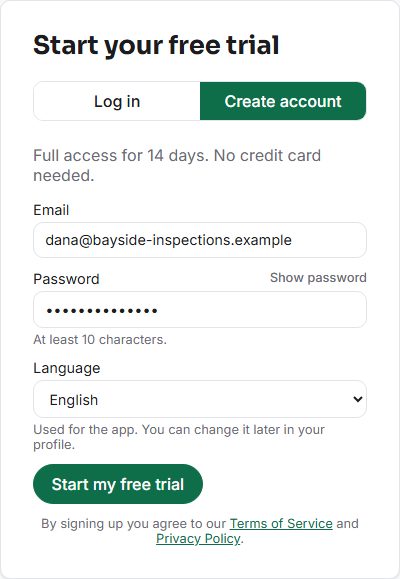
Enter your Email and a Password of at least 10 characters. You can tap Show password to check what you typed.
Pick the Language the app should open in. You can change it later in your profile (see Your profile).
Tap Start my free trial. No credit card is asked for.

If the page offers Continue with Google or Continue with Microsoft, you can use that instead of a password. Those accounts skip the confirmation email, because the provider has already checked the address.
Confirm your email
After you tap Start my free trial, one of two things happens:
- You go straight to the setup guide. Nothing to confirm. Carry on with The Finish setting up checklist.
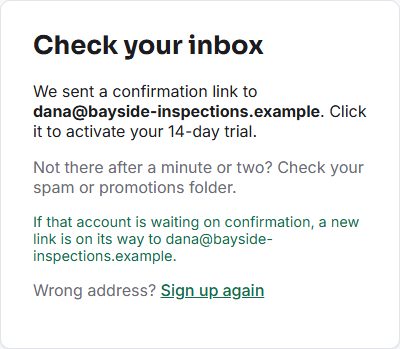
- You see Check your inbox. A confirmation link has been sent to the address you gave. Open that email, whose subject is Confirm your email - AfterInspect, and click the link. It confirms the address, signs you in, and takes you to the setup guide.

On the Check your inbox screen, the email address is shown in bold. If it is wrong, tap Sign up again and start over with the right one.
If the email does not arrive
Wait a minute or two, then check your spam or promotions folder.
Tap Send the confirmation link again. The screen then says that if the account is waiting on confirmation, a new link is on its way.
Open the newest email and use that link.

A second email can arrive, for example when you tap resend, or when your mail app delays the first one. Use the most recent one. Resending is safe: it only sends a link while the account is still waiting on confirmation.
If you tap resend too many times, the screen says there have been too many requests from your connection. Wait 10 minutes and try again.
Sign in
- Go to the Log in page and enter your Email and Password.
- Tap Log in.
If you forgot your password, tap Forgot password? on the same form and follow the link in the email it sends.
If something goes wrong
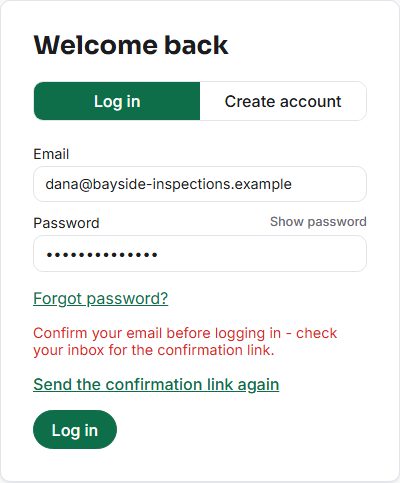
"Confirm your email before logging in". Your password was right, but the address is not confirmed yet. A Send the confirmation link again link appears under the message. Tap it, then use the link in the new email.
"This confirmation link is invalid or has expired." The link page then offers a field for your email and a resend button, so you can ask for a fresh link there. If you had already confirmed and clicked the link a second time, this is the page you reach: use Log in instead.
"Wrong email or password." Check the address and password. Use Show password to see what you typed.
"Too many attempts from this connection." Wait 10 minutes and try again.
"Your account is on" another website address. AfterInspect has separate Canadian and US sites, and an account lives on one of them. The message gives the address to sign in at.
An account already exists for this email. When you try to create an account that already exists, you are offered Log in instead or reset your password.

The wording in these pictures is what you will see.
Once you are in, install the app on your phone: Install on iPhone or Install on Android.