 AfterInspect
Templates and add-on sections
A template is the list of sections and items you work through in an inspection. Your account starts with the standard templates for your country, you can add more from a catalog, and you can add small ready-made sections, called add-on sections, to any single inspection.
Add a template from the catalog
Only the account owner and admins can do this. Everyone on the account can use the templates once they have been added. See Inviting your team for who else can be on the account.
Open the menu at the top right, choose Account, then Templates under Workflow. The page is titled Add a template.
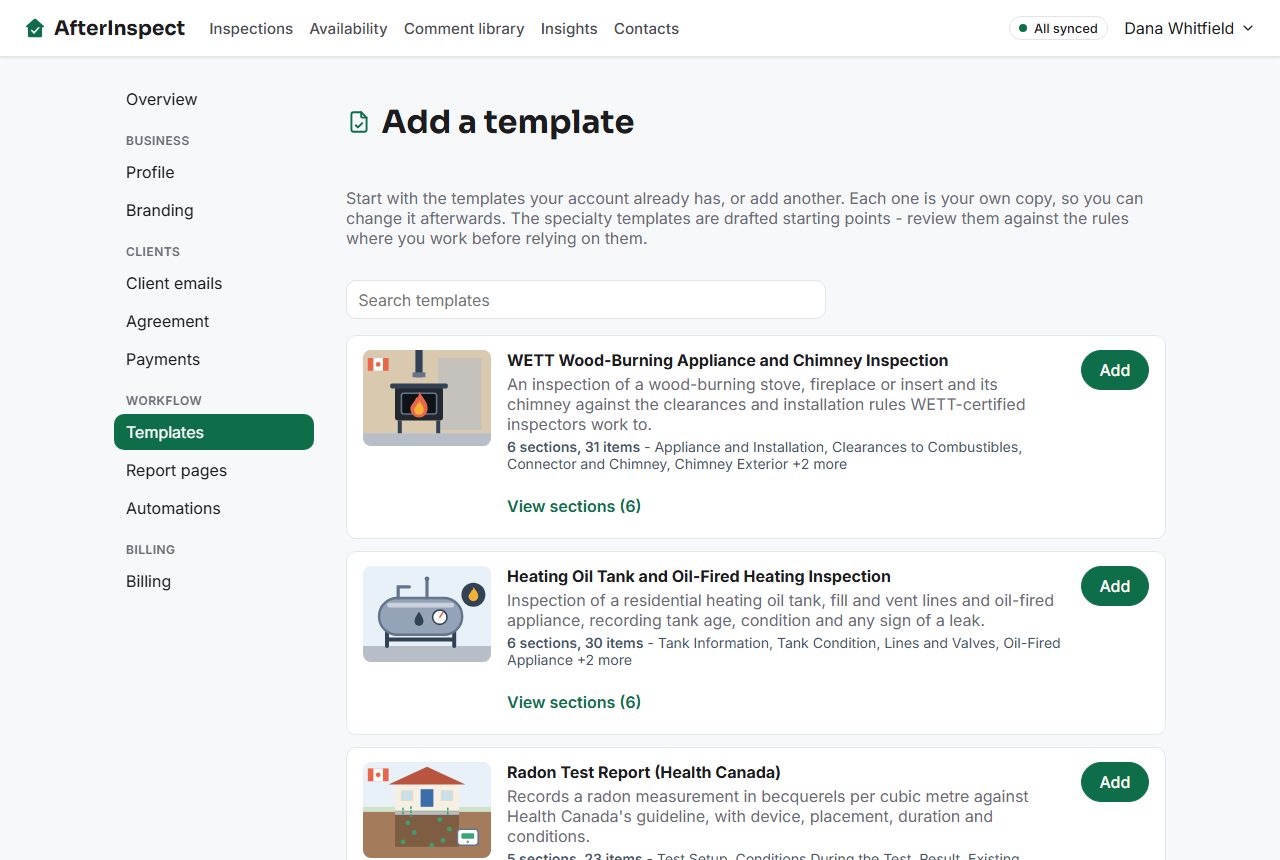
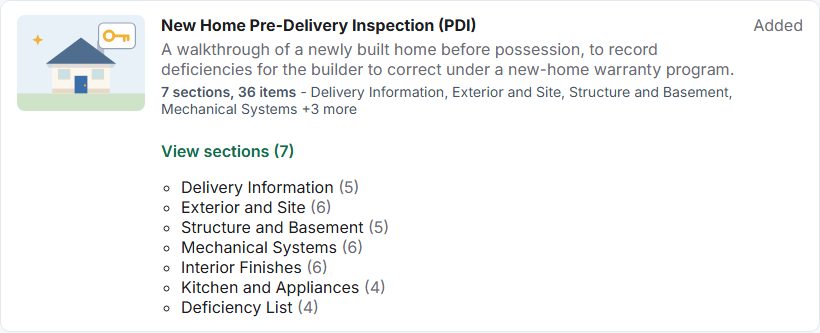
Browse the list, or type in Search templates to filter it by name or description. Templates you can still add are listed first, and the ones you already have come after them, marked Added. A long list is split into pages with Previous and Next.
Tap View sections (N) on a template, where N is its number of sections, to see its sections and how many items each one has.
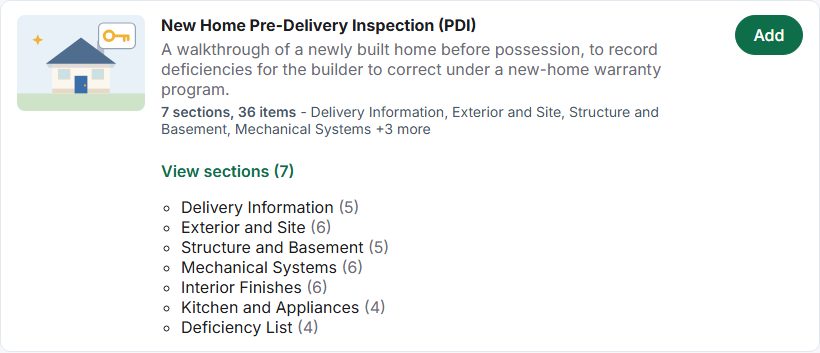
Tap Add. The entry changes to Added.


The catalog lists the templates for your account's country, so the Canadian and US lists differ. Each one you add is your own copy. A few are the core standards your account was created with; if you already have a template for a standard, the catalog shows it as Added and will not add a second one. The specialty templates are drafted starting points, and the page itself tells you to review them against the rules where you work before relying on them.
There is no editor for templates in the app for an ordinary account. You cannot rename a template or reorder, add or remove its items. To change the list for one job, add an item or a section while you are inside that inspection (see below).
Choose a template for a new inspection
Tap New inspection.
If your account has more than one template, a Template list is at the top of the form. It starts on the template you used last time. The first time, it suggests the standard that matches the Province you choose.
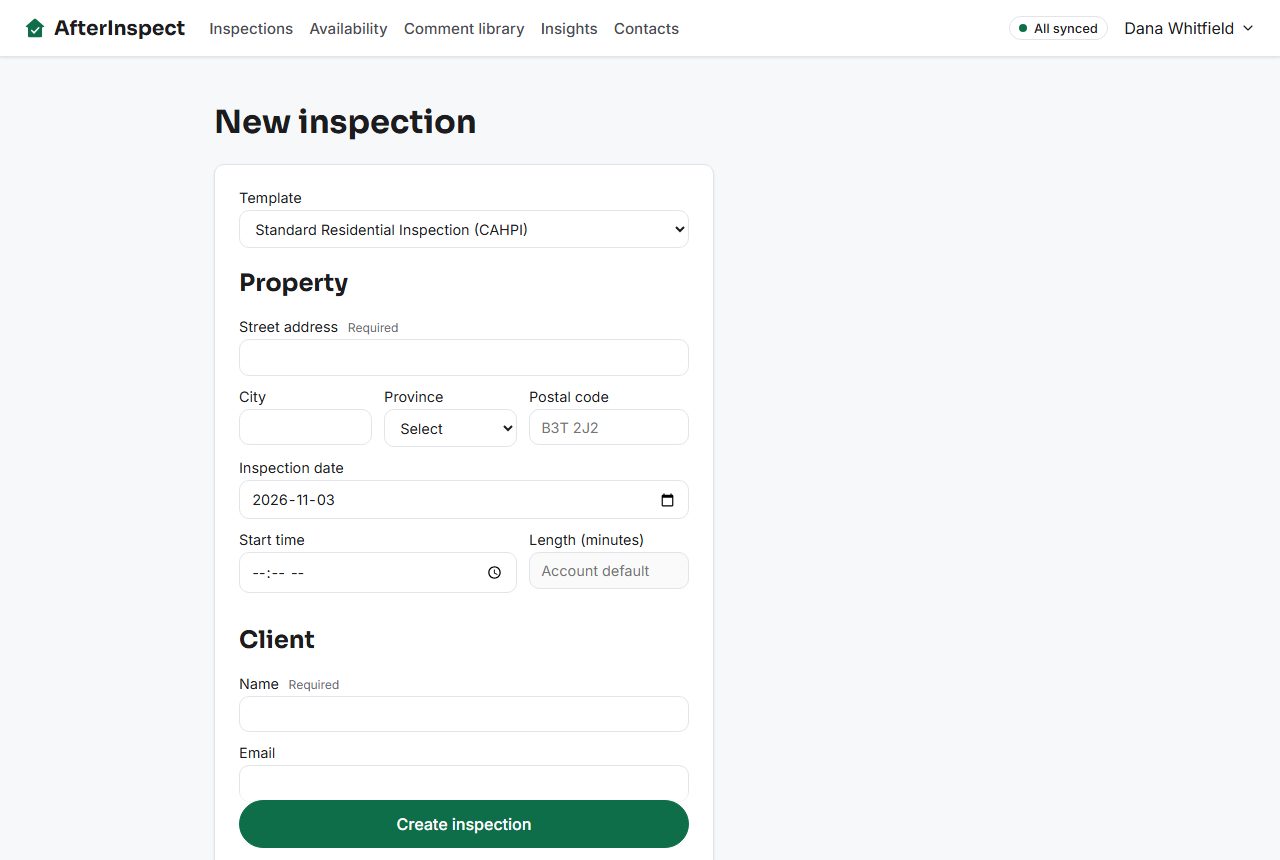
Fill in the details and tap Create inspection.

The inspection is built from a copy of the template. From then on it does not change if you add other templates later.
Add-on sections
An add-on section is a ready-made block of items for a type of property or an extra service. There are ten, in two groups.
- Property type: Condo / strata unit, Townhouse / semi-detached, Multi-unit building, New construction, and Well and septic property.
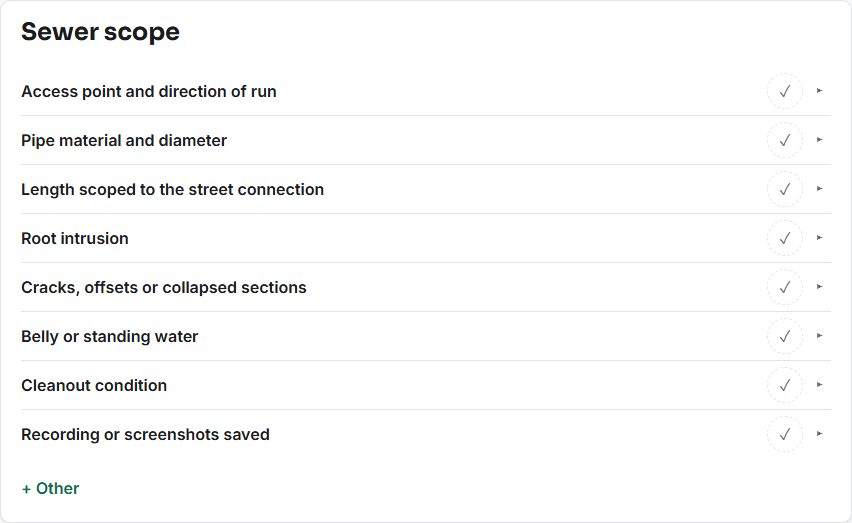
- Extra services: Radon test, Mould assessment, Sewer scope, Wood-destroying insects / pests, and Thermal imaging.
The items are checklists of what to look at and record. They are not findings and not a standard of practice. For radon, mould and similar services, they only give your write-up a structure: the test itself needs your own certified method and equipment.
To add them while you create an inspection, open Add-on sections on the New inspection form and tick the ones you want. The label shows how many you have chosen.

To add one to an inspection that is already open:
Scroll to the bottom of the inspection and tap + Add condo, radon, sewer scope or other sections.
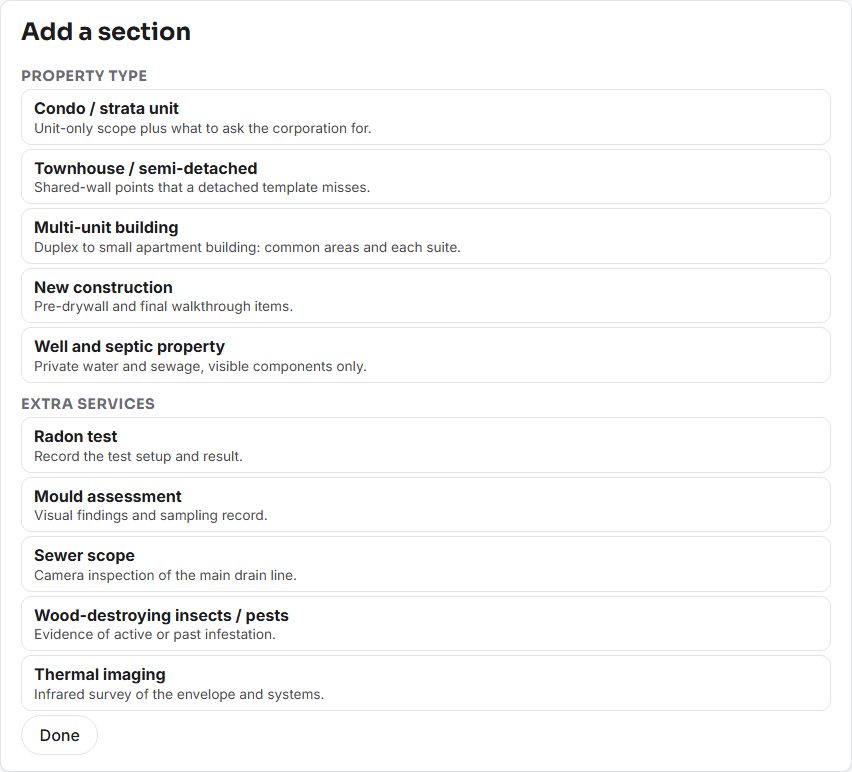
Tap a pack. It is added at the end of the inspection straight away.
Tap Done to close the panel.


A pack is an ordinary section once it is in the inspection. You mark its items, add findings and photos the same way as everywhere else. A pack that is already in the inspection is not offered again, and the panel is hidden on a completed inspection, so reopen it first if you forgot one.
To add something that no pack covers, use + Other under a section to add one item, or + Add topic at the bottom to add a whole section, for that inspection only.
Inspections already started
Starting an inspection copies the template. Adding a new template, or adding an add-on section to another inspection, does not change an inspection that is already under way. An add-on section you add changes only the inspection you add it to.
Working offline
The app saves a copy of every template in your account on the device each time it is opened with a connection, and saves a new one at the moment you add it. A new inspection is built from that copy, so you can start one with no signal. The add-on sections are part of the app itself and also work offline.
The catalog page needs a connection to load and to add a template. See Working offline and fixing sync issues.
If something goes wrong
- You cannot see Templates under Account. The tab is for the account owner and admins.
- The catalog will not load. The page says to check your connection and try again.
- "You already have that template." Another admin added it a moment ago, or you already have a template for that standard. Reload the page.
- "Could not create the inspection. If this is the first time using the app, connect once before going offline." The device has no copy of the template yet. Open the app once with a connection and wait for it to finish syncing, then try again.
- The Template list is missing from the New inspection form. It shows only when the account has more than one template.