 AfterInspect
Working offline and fixing sync issues
Basements, crawlspaces and rural lots often have no signal. AfterInspect saves everything on your device first and sends it to the server when it can, so losing the connection does not lose your work.
Before you start
- Open the app once while online after signing in. That is when the inspection template is saved to your device, and a new inspection needs it.
- Keep the app open. Syncing runs while the app is open on screen. There is no background syncing on iPhone, so a change made offline is sent the next time you open the app with a connection.
What works with no signal
- Starting an inspection.
- Setting conditions, adding and editing findings, notes and limitations, and completing the inspection.
- Taking photos and videos, and recording dictation. They are stored on the device and wait to upload.
What needs a connection
- Uploading photos, videos and recordings. They wait their turn and go up when the connection returns.
- Turning a recording into text, and the AI buttons.
- The suggestions from your comment library in the finding form.
- Preview report and Preview PDF, and generating or sending a report. Before it builds a preview, the app first tries to send what is waiting. If some changes are still waiting, it says how many "haven't synced yet, so they aren't in this preview."
Read the sync indicator
The indicator sits in the header at the top right, to the left of your name.
All synced (green dot): nothing on this device is waiting.

N items pending (orange dot): this many changes are saved on your device and not yet confirmed by the server. This is what you see offline, or while a batch is on its way.

When the connection returns, the app sends the waiting changes by itself, and the indicator goes back to All synced. You do not need to tap anything.

N sync issues (red, a link): the server received a change and refused it. Tap it to open the Sync issues page.



A lost connection is never counted as a sync issue. If the server cannot be reached, the app stops, keeps everything, and tries again later. A sync issue only appears when the server answered and refused a particular change. If the whole request fails, because the server cannot be reached or answers with an error, nothing is recorded and the app tries again later.
What is not lost
- Each change stays on your device until the server confirms it. It is only removed from the waiting list after that confirmation.
- If the app is closed or the page is reloaded halfway through a send, the change is simply sent again next time. The server recognises one it has already applied, so you do not get duplicates.
- A photo's full-size copy is cleared from your device only after it has uploaded. Until then it stays.
- The app retries every 15 seconds while open, and whenever the connection returns.
One limit: unsynced changes live in your browser's storage on that device. Clearing the site's data in the browser, or removing the app, before they have synced would remove them. Wait for All synced first.
If the same inspection was also edited on another device, a banner says "This inspection was also edited on another device. The most recent change to each field was kept - double check the details below." Check the details it names.
Fix a sync issue
Tap the red N sync issues indicator. The Sync issues page lists "Changes made on this device that the server has rejected."
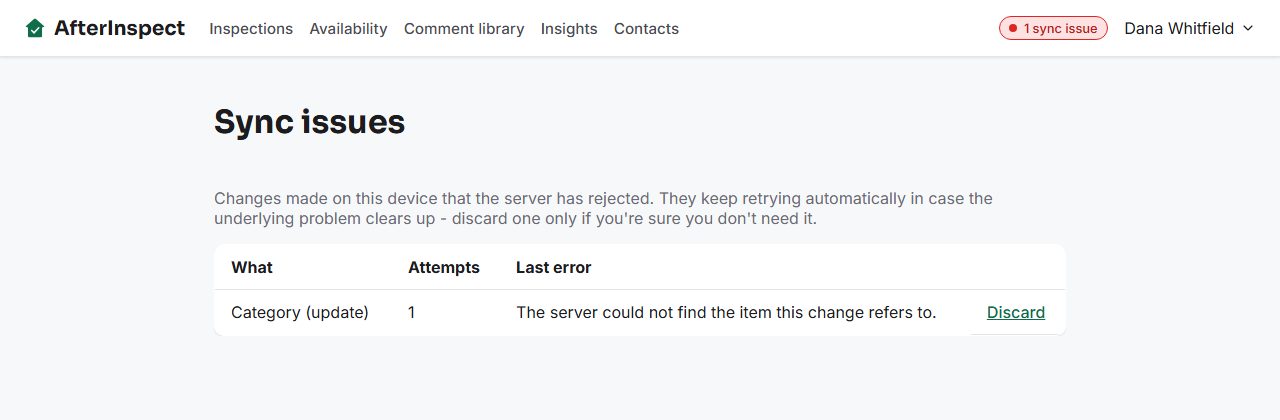
Read each row. What names the kind of record and the action, for example "Category (update)". Records are called Inspection, Topic (a section), Category (an item), Finding, or Photo/video/audio, and the action is create, update, delete or assign. Attempts is how many times the server has refused it. Last error is the server's reason.
Leave it if you can. The app keeps retrying in case the underlying problem clears up, and a row disappears by itself when it finally goes through.
To give up on one, tap Discard. This stops that one change from being sent. It does not undo the change on your device, so the item may differ between your device and the server afterwards. Discard a change only if you are sure you do not need it.

The error in the screenshot was produced for this guide by forcing a refusal; the app normally accepts these changes. When there is nothing to fix, the page says "No sync issues on this device."
If something goes wrong
- The indicator stays on "N items pending" with a connection. Keep the app open and wait a little. It tries every 15 seconds. If it stays, close and reopen the app.
- A photo badge says "failed". The upload is retried automatically. See photos and video.
- A recording still says "(awaiting dictation)". It has not uploaded or been transcribed. See dictate a finding.
- "Photos are still syncing - wait a moment and try again." Wait for All synced, then try the AI classification again.