 AfterInspect
Repair requests
A repair request is a short list of findings that your client picks from the shared report to send to the seller's side, usually through their own agent. The client builds it; you do nothing to switch it on, and you are not told when one is made. This article shows what the client does and what the recipient gets.
Before you start
The client needs the share link of a published report. See Share the link and email the client. Repair requests are built on that web report, so they are not available from the PDF, and the inspector's own draft preview shows the tick boxes but no repair bar.
What the client does
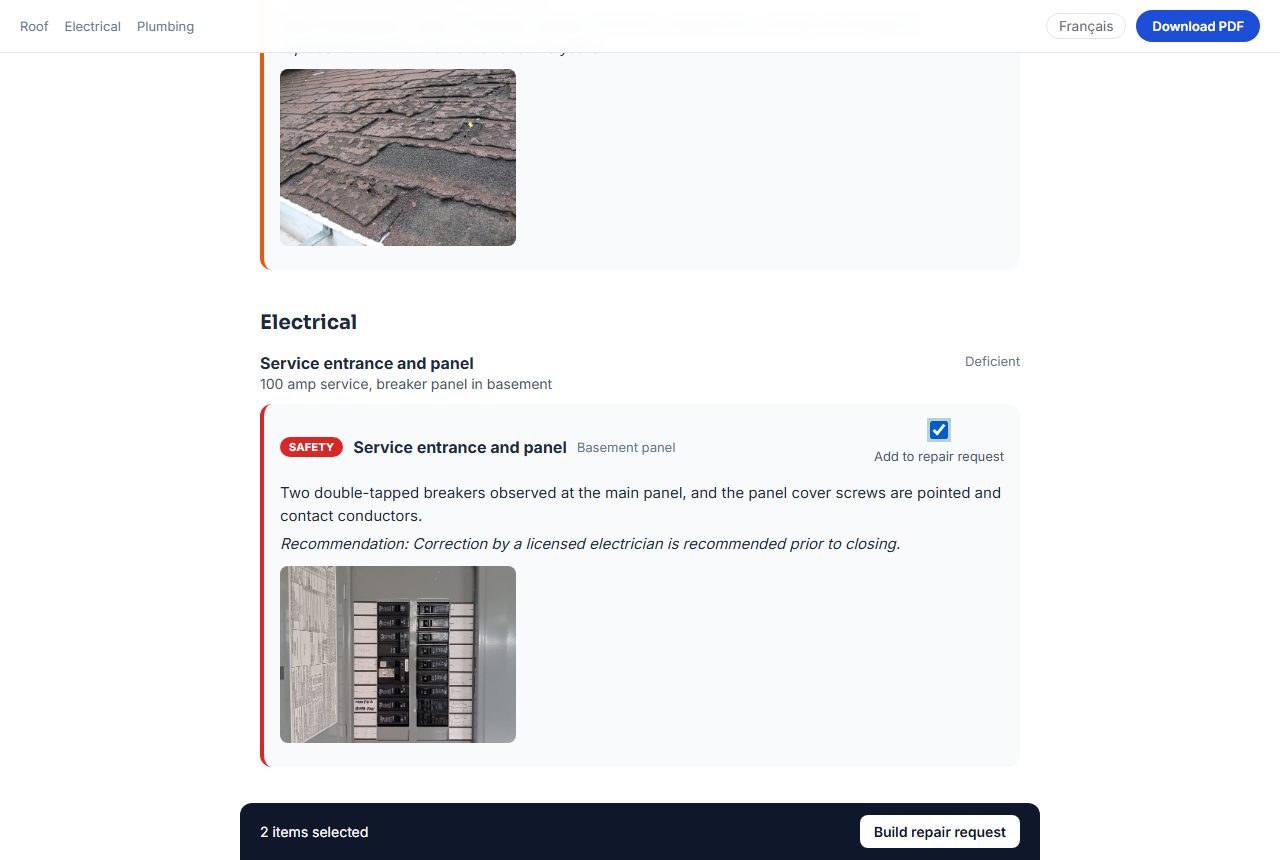
On the report page, tick Add to repair request on each finding to include. Any finding of any severity can be picked, not only Safety and Major. Pick as many as you like.
A dark bar appears at the bottom of the screen: "2 items selected" and a Build repair request button.
Tapping Build repair request opens a page headed "Repair request" with the address and your company name. Each chosen finding is a numbered card with the item name, its section, severity and location, the narrative, "Recommended:" and the recommendation, and up to three of its photos.
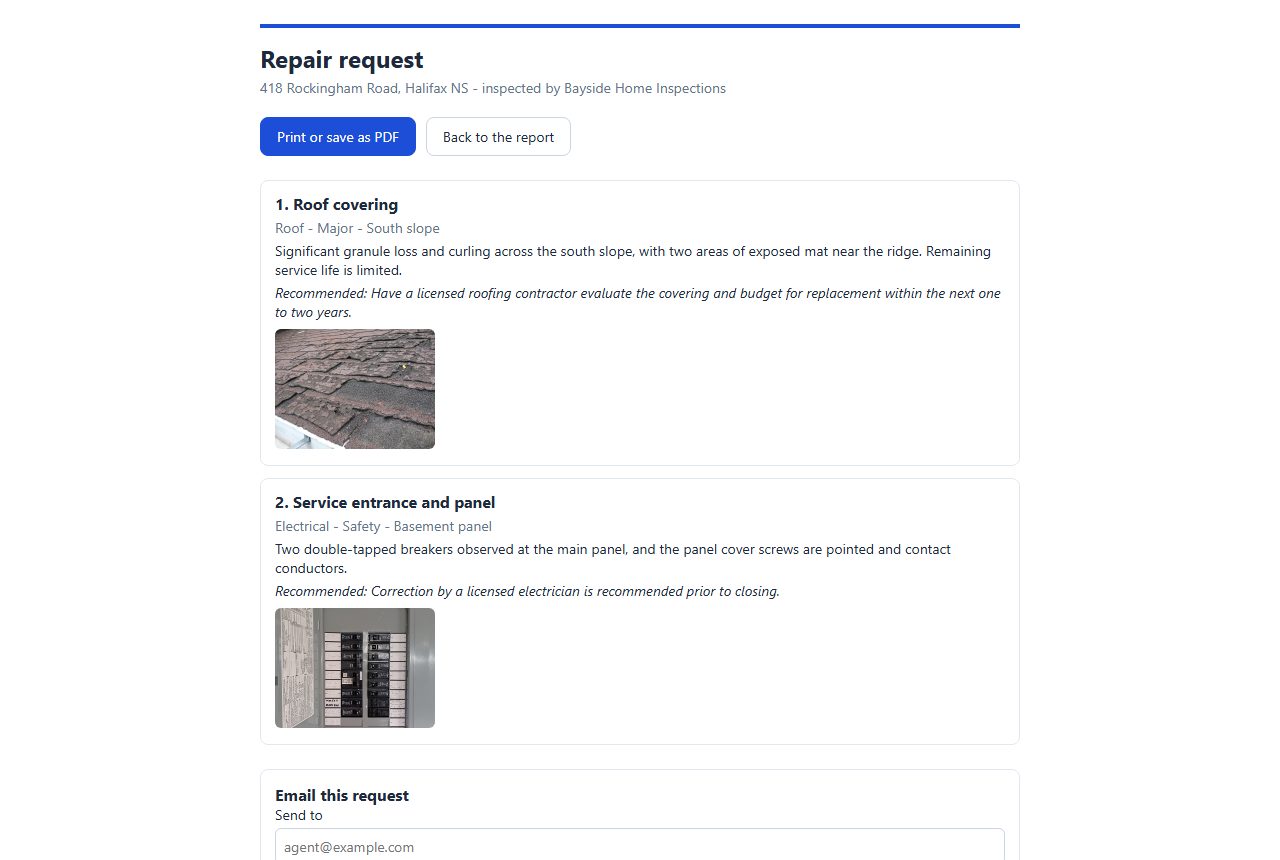
From there the client can tap Print or save as PDF, Back to the report, or email the list.


If the report has a passcode, the client enters it once on the report page; the repair page uses the same unlock. If the link has expired, the repair page says so, the same as the report.
Email the list
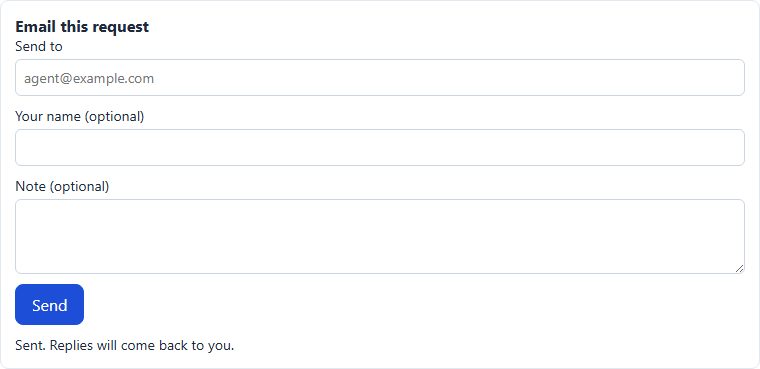
At the bottom of the repair page is Email this request.
Send to is required: the email address of whoever should get the list, such as the client's agent.
Your name (optional) and Note (optional) are added to the email. The name is up to 100 characters and the note up to 1,000.
Tap Send. The page says "Sent. Replies will come back to you." and clears the form.

The recipient gets an email with the subject "Repair request -" and the address, sent from your company name followed by "(via AfterInspect)". It starts "(the name typed into Your name, or The buyer if it was left empty) has asked that the following items from the inspection of (address) be addressed.", then shows the note, then a numbered list: the item and location, the severity, the narrative and the recommendation. It ends with "From the inspection by (your company). Reply to this email to respond to the sender." There is deliberately no link back to the report, and no photos, so sending a request never hands the recipient the whole report.
Replies go to the email address you last sent the report to, or to your own address if you never used Email to client.
What you see
Nothing in the app. There is no notice, no list of requests and no count. You only hear about one if the client or the recipient contacts you, or if the client addressed it to you. Printing the list leaves no trace at all.
Limits
A report can send five repair-request emails in total. After that the form is replaced by "This report has reached its limit for emailed repair requests. Print the list instead." There is also a short-term limit per person, so a burst of sends from one place is refused for a few minutes. These limits exist because the page needs no login and the recipient is typed by whoever opens it.
If something goes wrong
- The client sees "No items were picked." They opened the repair page without ticking anything. Go back to the report and tick findings.
- "Enter a valid email address to send this to." The address in Send to was not accepted.
- "Pick at least one item for the request." None of the chosen findings could be found. Go back and tick them again.
- "Could not send. Check your connection and try again." The send did not go through, and it was not counted against the limit of five.
- The client wants a repair list but the report link has expired. Tap Renew for 90 days in the Report box. See Report versions for how links relate to versions.