 AfterInspect
Install on iPhone
AfterInspect is a web app. You install it from the browser to your home screen, and it then opens full screen with its own icon. Installing matters in the field: an installed app opens straight into your inspections and keeps your work on the device when there is no signal.
Before you start
- Use Safari. Other browsers on iPhone can also add a site to the home screen on recent versions of iOS, but Safari is the one these steps are written for.
- Be online for the first run. Open and sign in while you have a connection, so the app can save your inspection templates to the phone. A new inspection needs them.
- There is no Install app button inside AfterInspect on iPhone. iOS does not give websites a way to offer one, so the steps below are the only way.
Steps
In Safari, open your AfterInspect address and sign in. In Canada that is afterinspect.ca, in the US afterinspect.com. Log in with the email and password you signed up with.
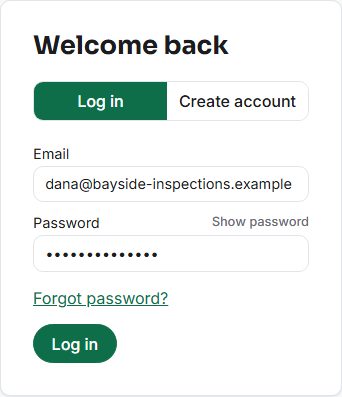
Once you are signed in and looking at your inspections, tap the Share button in Safari. It is the square with an arrow pointing up.
Scroll the share sheet and tap Add to Home Screen.
Check the name, then tap Add. The AfterInspect icon appears on your home screen.
Open AfterInspect from that icon from now on.

The exact wording and position of the Share button and the sheet varies a little by iOS version. If you cannot see Add to Home Screen, scroll the list of actions further.
What to expect
- The icon opens the app at your inspections list, not the marketing site.
- The installed app may ask you to sign in again the first time, because a home screen app does not always share its sign-in with Safari. Log in once more.
- Syncing runs while the app is open on screen. See Working offline and fixing sync issues.
If something goes wrong
- No Add to Home Screen in the list. Make sure you are in Safari and not inside another app's built-in browser, such as a link opened from an email or message. Open the address in Safari itself.
- You cannot sign in. Check that you confirmed your email. See Sign in and confirm your email.