 AfterInspect
Booking requests
A booking request is a client's online booking that is waiting for your say-so. It arrives when you confirm bookings yourself, or when a client says none of your times work for them. Accepting turns it into a normal inspection on your list; declining sends it away.
Before you start
Requests only come from your booking link, so turn it on first. See Online booking and availability. A request is created in two cases:
- I confirm each booking myself is ticked in the Limits box (or the client picked a service whose When booked is I confirm each one), and the client picked a time.
- The client ticked "None of these work. I would like to ask for a different time." and so sent no time at all.
Only the account owner or an admin can accept or decline (see Inviting your team for roles). Anyone else who opens the page sees "Only the account owner or an admin can accept or decline requests."
Find your requests
When something is waiting, Requests appears in the top bar with a green number. It is not there when nothing is waiting. You also get an email, "Booking request:" followed by the address, and a push notification if you have turned them on.
Tap Requests. The page is headed Booking requests.
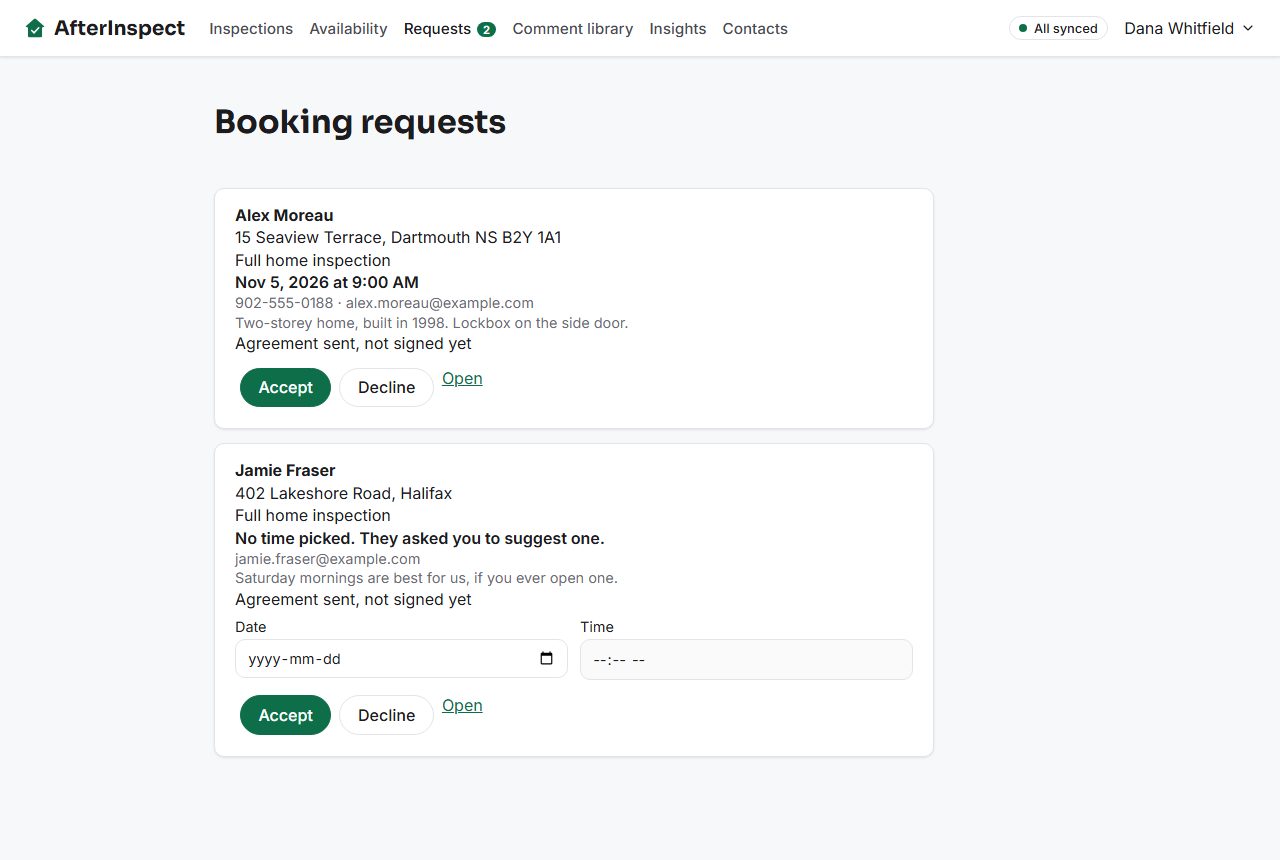

Each card shows:
- the client's name, the property address and the service;
- the time they asked for, or "No time picked. They asked you to suggest one.";
- their phone and email, or "No contact details";
- anything they wrote in "Anything we should know?";
- "Agreement sent, not signed yet" or "Agreement signed", when you send the agreement at booking.
A requested time is held while it waits, so nobody else is offered it.
Accept a request that has a time
Tap Accept. The card goes away and the booking becomes a normal inspection with that date and time. It shows under Coming up and in the table on your Inspections list.

Accept a request with no time
A request that asked for a different time has Date and Time fields on its card.
Pick a Date. Time stays greyed until you do.
Pick a Time.
Tap Accept.
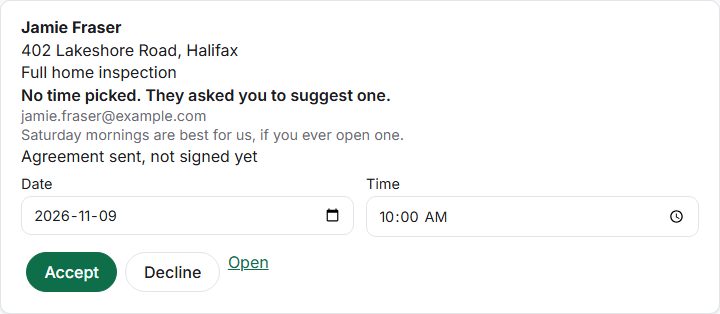

You can also tap Accept without a date. The request becomes an inspection with no date, and you schedule it from the inspection afterwards.
Contact the client yourself if you offer a time they did not ask for. Accepting does not message anyone.
Decline a request
Tap Decline. The request leaves the list and its time is free again. It no longer shows in your requests or on your Inspections list, and a decline cannot be undone from the app.
If Email clients a confirmation and a reminder the day before is ticked under Availability, the client is emailed "About your inspection request". It says you cannot take the inspection at the time requested and asks them to reply to arrange another. If that box is not ticked, the client is not told.
What the client hears
Nothing until you act, apart from the page they saw when they submitted and, if you ticked the email option, an acknowledgement "We received your inspection request". Once you accept a request that has a date and time and the email option is ticked, they get "Your inspection is booked" with the details within about half an hour, then a reminder the day before. Without that option, tell them yourself.
Open the request
Tap Open to see the full inspection behind a card. The client has already been added as a contact; see Contacts.
When everything is dealt with the page says "Nothing waiting."

If something goes wrong
- "Could not accept this request." or "Could not decline this request." Check your connection and try again. If the request was already dealt with on another device, refresh the page.
- "Could not load requests. Check your connection and refresh." The list did not load.
- The Requests link is missing. Nothing is waiting, or the list has not loaded. The count counts requests, not bookings that were confirmed at once.
- A client says they booked and you see no request. A client who was booked at once appears under Inspections, not Requests.
- The client says they never got a confirmation. The email option is off, or the inspection has no time yet. Confirmations are only sent for an inspection that has a date and a start time and an email address.