 AfterInspect
Client emails and automations
AfterInspect sends some email to your clients on your behalf, and can pass events on to other tools. This article lists every client email, which ones you control, and how to turn them off. Only the account owner or an admin can change these settings.
What every client email has in common
- It comes from your company name followed by "(via AfterInspect)", and a reply goes to the email address of the inspector on the inspection, not to AfterInspect. That address is the one on the inspector's profile: see Your profile.
- You cannot edit the wording. You choose whether an email is sent, the delay in days for some, and the review link.
- Each automatic email is sent once per inspection or report. A send that fails is tried again later.
- The follow-up emails skip sample inspections.
Emails you start yourself
These are sent when you press a button:
- The report, from Email to client in the Report box. See Share the link and email the client.
- The agreement, from Send agreement, or at booking if you switched that on. See Pre-inspection agreement.
- A payment reminder, from Send reminder, on Canadian accounts that take client payments.
Emails that always go out
- A signed copy of the agreement to the client, and a short "Agreement signed" email to you, when the client signs.
- A receipt to the client, and a "Payment received" email to you, when a client pays a payment link.
- An email to you when a client books or asks to book online, "New booking:" or "Booking request:" with the address.
Emails you switch on
Open Account, then Client emails. A new account has them all off. Tick the ones you want and tap Save; the page says "Saved."

- Report not opened. "Remind the client once if they have not opened their report". Set Days after delivery (1 to 30, starts at 3). One reminder per report, with the same link, and never once the report has been opened or if the link has expired. Subject "Your inspection report" and the address.
- Review request. "Ask the client for a review after they have read their report". Paste Link to your review page, for example your Google review link; it must start with http or https or nothing is sent. Days after delivery also applies. It is sent once per inspection and only after the client has opened the report. Subject "How was your inspection with (your company)?"
- A year on. "New builds: offer a warranty walkthrough about 11 months after delivery" goes only to homes built in the year of the inspection or the one before, using Year built on the inspection. "Send a yearly maintenance check-in about 12 months after delivery" goes to any inspection. If both are on, a new build gets the warranty email and not the yearly one. Neither carries a report link, because it will have expired.
- Agreement. "Remind a client once if they have not signed the agreement a day after it was sent". It is not sent once the inspection date has passed.
- Delivering a report. "Also send the report to the buyer's agent by default (you can untick it for any one delivery)". This only changes the starting state of a tick box when you email a report.
- Payments. "Email a client up to two reminders, three days apart, if they have not paid their payment link". It only appears on Canadian accounts with payments connected.
The picture below, with the Payments option, is an illustration made on a test site with a connected payments account faked; your own screen shows the option only once your payments are connected.

Booking emails are switched on elsewhere. In Availability, Limits, Email clients a confirmation and a reminder the day before sends the client an acknowledgement when they book or ask to book, a confirmation once the visit has a date and time, a reminder the day before, and a note if you decline a request. See Online booking and availability and Booking requests.
How they are timed
The follow-up emails on the Client emails page are checked once an hour, so one can arrive a little after its day. The booking confirmation and reminder are checked every half hour. Turning an option on never sends emails about old deliveries: the report and review emails ignore reports delivered more than 30 days ago, and the year-on emails only look at a 30-day window after they fall due. The report reminder, review request and year-on emails go to the address the report was last emailed to; the agreement reminder goes to the address the agreement was sent to.
Turn one off
Untick it and tap Save. Nothing already sent can be recalled, and nothing further is sent for that option.
Pass events to another tool
Automations under Account is for webhooks: a web address on another tool that AfterInspect calls when something happens. People use it to add a row to a spreadsheet, a task to a CRM or a message to a team chat, through Zapier, Make or their own server. Only owners and admins see it.
AfterInspect sends one message per event:
- A report is emailed to a client (report.delivered): the report and inspection ids, version, address, client name and email, the share link and the time.
- A client signs an agreement (agreement.signed): the agreement and inspection ids, title, address, client name, the name typed and the time.
- A client pays (payment.received): the payment and inspection ids, amount in cents, currency, address, client name and the time. Canadian accounts only.
Each is an HTTPS POST of JSON shaped as an id, a type, a creation time and the details under "data". The page's own description mentions the first two events; the payment event is sent too. The messages contain your client's name and email, so treat the receiving tool as holding client data.
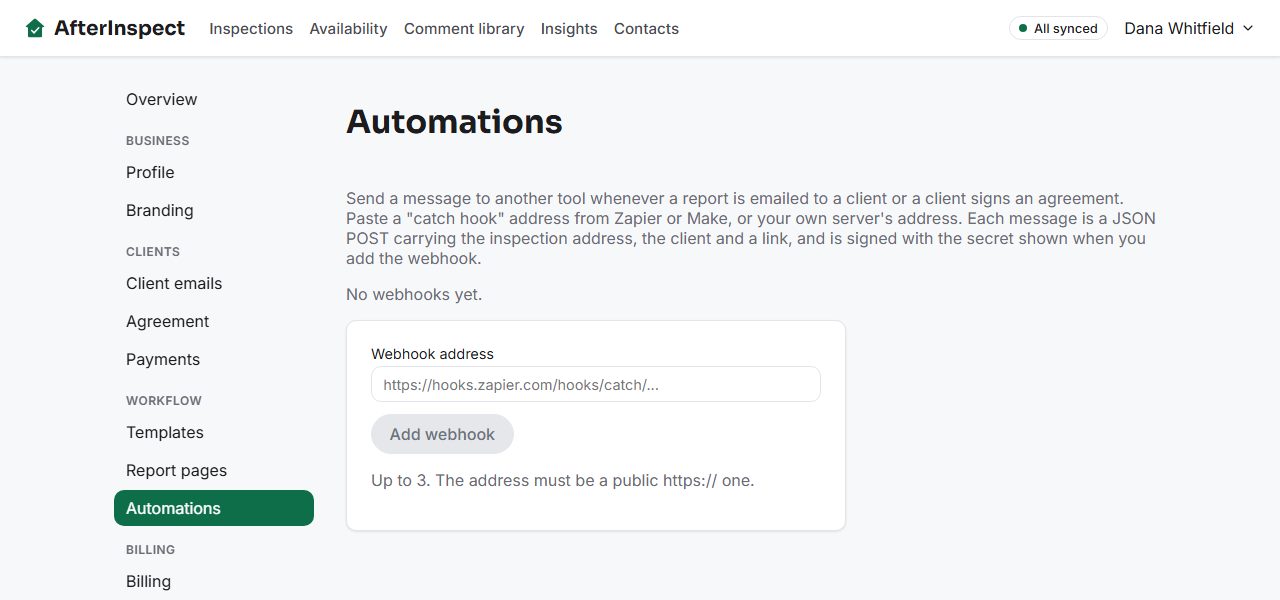
Open Automations.
In Webhook address, paste the address, for example a Zapier or Make "catch hook". It must be a public https:// address; one that points at a private network or "localhost" is refused. You can add up to 3.
Tap Add webhook. A panel, "Signing secret for the new webhook", shows a secret once. Copy it now, then tap I have copied it. It is not shown again.
The webhook appears in a list with a status: "Nothing sent yet", "Last delivered (date)" or "Last attempt failed: (reason)".
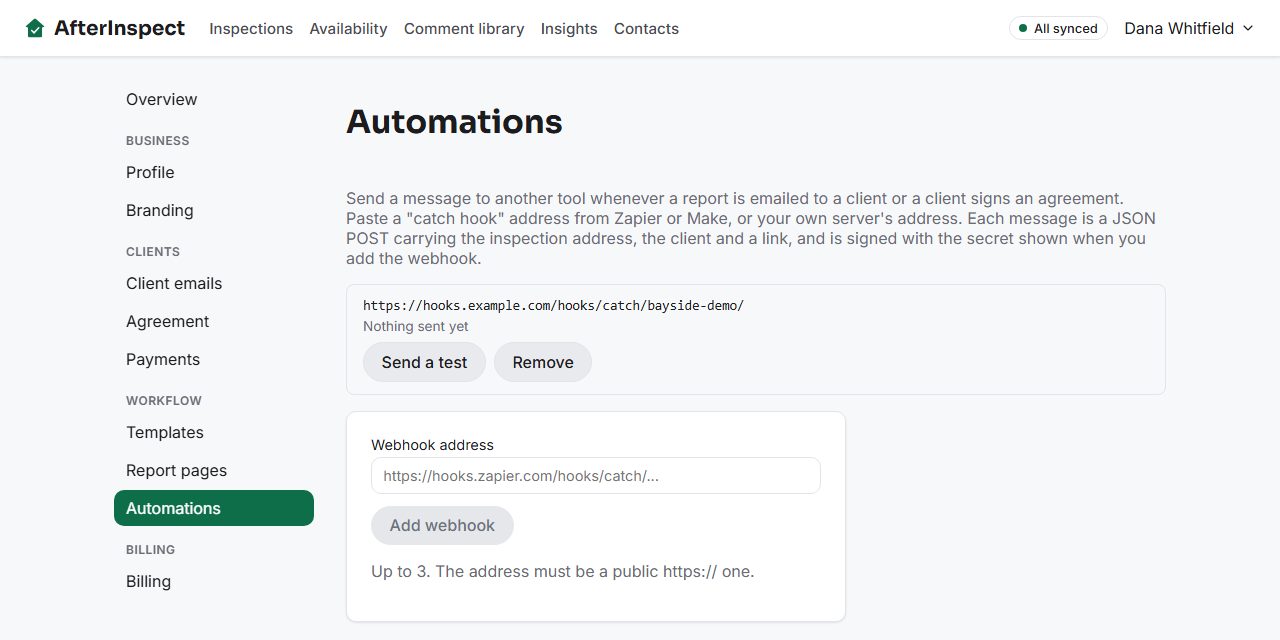
Tap Send a test to send a test message. It says "The test arrived." or "The test failed:" and the reason.


To check a message really came from AfterInspect, use the secret on the X-AfterInspect-Signature header. It reads t=(unix time),v1=(hex), where the hex is an HMAC-SHA256 of the time, a dot and the exact body, signed with your secret. The headers X-AfterInspect-Event and X-AfterInspect-Delivery give the event name and a delivery id.
To remove one, tap Remove, then Yes, remove it, or Keep it to cancel. A delivery is attempted up to six times in total, spread over several hours, and then given up on, so a dead address costs a few attempts rather than a backlog.
If something goes wrong
- A client says they never got an email. Check that the option is switched on and saved, and that the inspection has the client's email. For report emails, the address is the one you last emailed the report to. Ask them to check spam.
- No review request went out. It needs a review link starting with http or https, and the client must have opened the report first.
- "Could not save. Try again." Check your connection and tap Save again.
- "Only the account owner or an admin can change these settings." Ask an owner or admin.
- "Could not add that webhook. Try again." The address may be wrong. The page shows a reason such as "The webhook address must be a full web address starting with https://."
- "Last attempt failed: no answer". The receiving address did not respond. Fix it and tap Send a test.
- You lost the secret. It cannot be shown again. Remove the webhook and add it again to get a new one.