 AfterInspect
Online booking and availability
Online booking gives you a link to put on your website or in your messages. Clients open it, pick a time you actually have free and send their details, with no phone tag. You decide your hours, services and limits on the Availability page, and whether each booking is confirmed at once or waits for you.
Before you start
Only the account owner or an admin can change these settings; anyone else sees them read-only. Set your time zone before you turn booking on, because clients are shown times in it. Everything on the page is a draft until you tap Save availability at the bottom.
Switch it on
Tap Availability in the top bar.
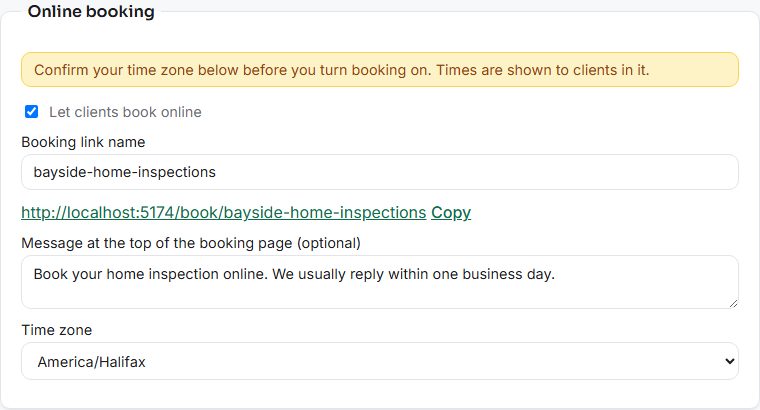
In the Online booking box, set your Time zone first. Until you have saved once, the page warns "Confirm your time zone below before you turn booking on. Times are shown to clients in it."
Tick Let clients book online.
In Booking link name, type the end of your link: lowercase letters, numbers and hyphens, 3 to 40 characters. Leave it empty and AfterInspect makes one from your company name when you save. Link names are unique across all accounts, so a taken one asks you to try another.
Below it, your full link is shown with a Copy button.
Optionally write a Message at the top of the booking page (optional), up to 500 characters.

Set your weekly hours
Under Weekly hours, pick How clients pick a time:
- Open schedule: you give working hours, and clients can pick any start time that still fits the job inside them. Start times every (minutes) in the Limits box sets how often a start time is offered.
- Time slots: you give exact start times, and clients can only pick from those.
For each day, tap Add hours (or Add time), then set when it opens and closes (or starts). A day with nothing says Unavailable. Copy to... copies one day's hours to the other days you tick. Remove deletes a window. Switching between the two modes keeps what you entered for the other one.

Limits
The Limits box controls how those hours turn into bookable times.
- Buffer between jobs (minutes): the gap kept around every other inspection, 0 to 480.
- Minimum notice (hours): how soon a client can book, 0 to 720.
- Book up to (days ahead): how far ahead they can book, 1 to 365.
- Most inspections per day (optional): a daily cap, 1 to 20.
- Start times every (minutes): open schedule only, 15 to 240.
- Default length (minutes): used when a booking has no service, 15 to 720.
- I confirm each booking myself (otherwise a client's pick is booked instantly): ticked means a client's pick becomes a request you accept; unticked means it is booked at once.
- Email clients a confirmation and a reminder the day before: sends the client an acknowledgement when they book, a confirmation once the visit is scheduled, a reminder, and a note if you decline. Off until you tick it.
- Send my agreement to clients when they book: needs wording under Account, Agreement first.

On a Canadian account that can take client payments, the same box also has Payment when a client books online and Hold the report until the client has paid. They are covered in the Collecting payment article, which is only shown on the Canadian site. If you do not see them, your account does not offer client payments.
Services
Under Services, tap Add a service for each kind of job you take. Each has a Name, Length (minutes), an optional Price (optional), When booked and an optional Description (optional). When booked can follow the account setting (Follow account setting), always Book instantly, or always I confirm each one. Untick Offered on the booking page to hide a service without deleting it, or tap Remove. You can have up to 30.
If you add no services, clients see a single "Home inspection" with your default length.

Days off and extra hours
Under Days off and extra hours, pick a Date, choose Closed or Extra hours in Type, optionally tick Only part of the day and give From and To, add a Label (optional), and tap Add exception. A closed day with no times is closed all day. Extra hours always need a start and an end.

Check what clients will see
What clients see lists real open times worked out from the draft you are editing and your actual calendar, ending with "Plus (number) more days with openings." If nothing is bookable it says so. Change a setting and the list updates. Tap Save availability when it looks right; the page says "Saved."

Anything that already holds time keeps it from being offered: another inspection with a date and a start time, and a booking request waiting for you. A request you have declined frees its time again.
What the client sees
Clients open your link, which is your site's address followed by /book and your link name. The page is headed "Book a home inspection with (your company)", shows your message and uses your accent colour (accent color on the US site), which you set in Branding your report. It has up to three steps:
- What do you need? The services, with length and price. It is skipped when you offer only one.
- Pick a time. A month calendar where open days are highlighted and the rest cannot be picked, then the open times for the chosen day. Below is a box to tick: "None of these work. I would like to ask for a different time."
- Your details. Name, Email, Phone, Property address, City, Province (shown as State on the US site), Postal code (ZIP code on the US site) and "Anything we should know? (optional)".
The button reads Book inspection, or Send request if they ticked the different-time box. Under it the page says "Times are shown in (your time zone)." The page also has a Français button, which switches it to French.

What happens next depends on your confirmation setting:
- Booked at once: the client sees "You are booked" and the inspection appears in your list.
- You confirm: the client sees "Request sent" and "(company) has your request for (date and time) and will get back to you to confirm." The request waits for you; see Booking requests. The time they asked for is held so nobody else can request it.
If you have the agreement switched on at booking, the client also gets a Read and sign your agreement button.

Either way you get an email, "Booking request:" or "New booking:" followed by the address, and a push notification if you have them on. The client becomes a contact (see Contacts). The inspection is created under the account owner with a default template: a CAHPI one if you have it, otherwise the first by name.
Calendar feed
At the bottom of the page, Calendar feed gives a read-only link you can subscribe to in Google Calendar, Outlook or Apple Calendar to see your inspections there. Pending requests are shown with "(Requested)" in front. Anyone with the link can see your schedule, so keep it private. Reset link makes a new one and the old one stops working.
If something goes wrong
- "That booking link is already taken. Try another." Another account uses it. Pick a different link name.
- "The booking link can use lowercase letters, numbers and hyphens (3 to 40 characters)." Fix the link name.
- "Write your agreement under Account > Agreement before sending it at booking." Write the wording first; see Pre-inspection agreement.
- "Could not save. Check the values and try again." One of the numbers is out of range. The page usually shows the specific message, such as "Buffer must be between 0 and 480 minutes."
- "Nothing is bookable with these settings." Your hours, notice or window leave no times. Add hours or shorten the notice.
- The client sees "Booking is not available". The link is switched off, mistyped, or the account is read-only (see Plans, the trial and billing).
- The client sees "Sorry, that time was just taken. Please pick another." Someone else booked it a moment earlier; the times refresh.
- "Too many attempts. Please wait a few minutes and try again." The page limits how often one person can submit.
- "You already have requests waiting with this company." A client can have three waiting requests at a time.
- Times look an hour out. Check Time zone in the Online booking box.